Settings
Configure your profile, group, aircraft, subscriptions, MFA, payment options, and app preferences.
Overview
The Settings screen is where you configure everything about your group, your personal profile, aircraft, and administrative options. The screen is organized in the order the cards actually appear: group and subscription first, then personal settings, then aircraft and administrative settings.
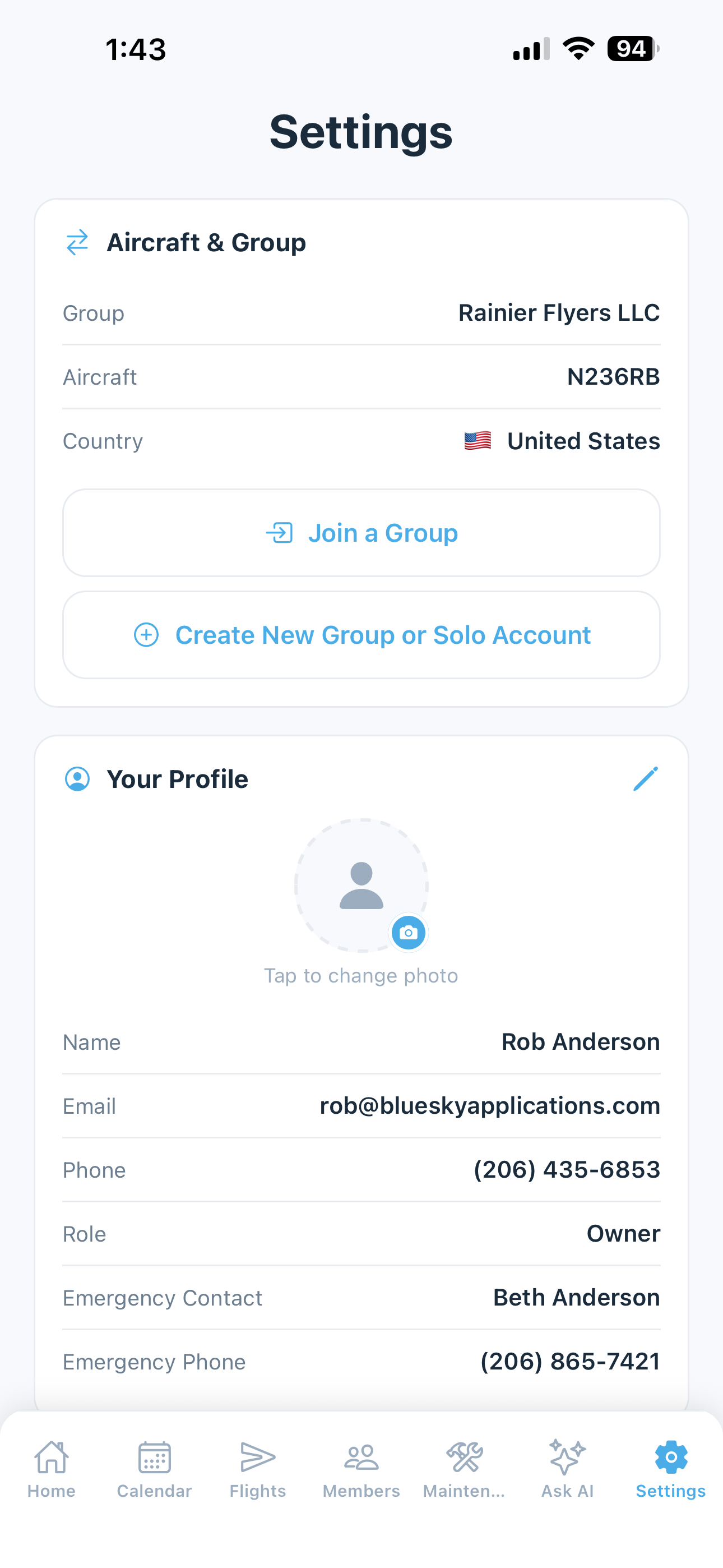
Group
Tap the pencil icon to edit the group name (Owners and Admins only).
- Name — the name of your flying club or partnership, visible to all group members
Your group’s Country is shown in the Subscription section right below, not here.
If you are the group Owner and there are other members in the group, you’ll also see a Transfer Ownership button here. See the Members & Roles page for details on transferring ownership.
If you want to leave this group without deleting your 5-by-5 account or affecting any other groups you belong to, use Leave Group — see Leaving a Group. Owners must transfer ownership first if other members remain.
Subscription
View your group and subscription details, and manage your plan.
- Group — the name of your group (read-only here; edit it under Group above)
- Country — drives currency formatting, regulatory references, phone validation, and sales tax/GST handling (United States and Australia supported today). Read-only: it’s set once during onboarding and isn’t self-service editable afterward on either mobile or web — contact
support@fly5by5.comif your group needs to switch countries. - Plan — your current tier (e.g., Solo, Club, or Free)
- Status — whether your subscription is active and when it expires
- Billing — whether you’re on monthly or annual billing (paid tiers only)
- Members billed — how many pilots your bill is based on (paid tiers only)
- Upgrade Plan — if on the free tier, tap to upgrade via Stripe Checkout
- Manage Subscription — if on a paid tier, tap to open the Stripe Customer Portal where you can update your payment method, switch billing periods, update member count, view invoices, or cancel
See Billing & Subscriptions for full details.
If you belong to more than one group or account (e.g., you co-own two airplanes with different partners, or you have a Solo account and also belong to a club), this card also shows:
- Switch Group — tap to see all your groups and accounts and switch between them. All data (flights, bookings, maintenance, members) reloads for the selected group.
- Join a Group — enter an invite code to join an additional group. Your existing profile information (name, phone, emergency contact) carries over automatically.
- Create New Group or Solo Account — start fresh with a new group or Solo account. The onboarding wizard runs again; your personal information carries over automatically so you only fill in what’s new.
5-by-5 remembers your last active group, so you’ll return to it when you reopen the app.
Your Profile
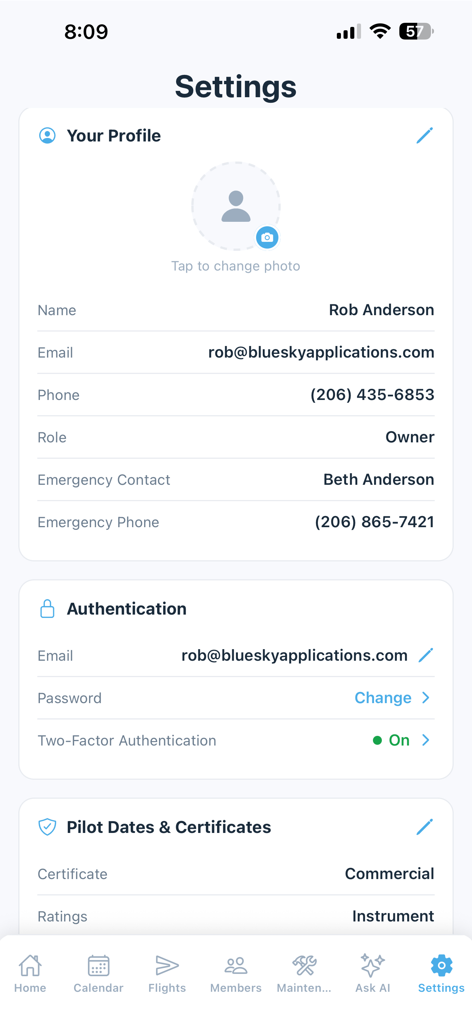
Tap the pencil icon to edit your profile. This is the information visible to other group members on the Members screen.
- Photo — tap your avatar to upload or change your profile photo
- Name — how you appear to other group members
- Email — your account email (displayed here, but changed under Authentication)
- Phone — your phone number, used for quick contact from the Members screen
- Role — your current role in the group (Owner, Admin, or Member)
- Emergency Contact — name and phone number for an emergency contact
- Emergency Phone — the phone number for your emergency contact
- Emergency Contact Relation — relationship to the emergency contact (e.g., “Spouse”)
Authentication
Manage your sign-in credentials and second-factor authentication:
- Email — tap to update the email address associated with your account. A confirmation will be sent to both your old and new email addresses.
- Password — tap Change to set a new password. You’ll be asked to enter and confirm the new password.
- Two-Factor Authentication — shows a green On indicator once you have enrolled, or Set Up if you have not (MFA is recommended for everyone and required only if one of your groups has switched that on). Underneath it, the row shows how many unused recovery codes you have left, in amber if the answer is none. Tap the row to generate a fresh set — this replaces any existing codes immediately, including ones you wrote down. There’s no in-app way to disable MFA. If you’ve lost access to your authenticator app, one recovery code clears it and lets you re-enroll on your new phone; see What if I Lose My Authenticator?. If you deferred enrollment, tap Set Up to do it now.
Pilot Dates & Certificates
Tap the pencil icon to edit.
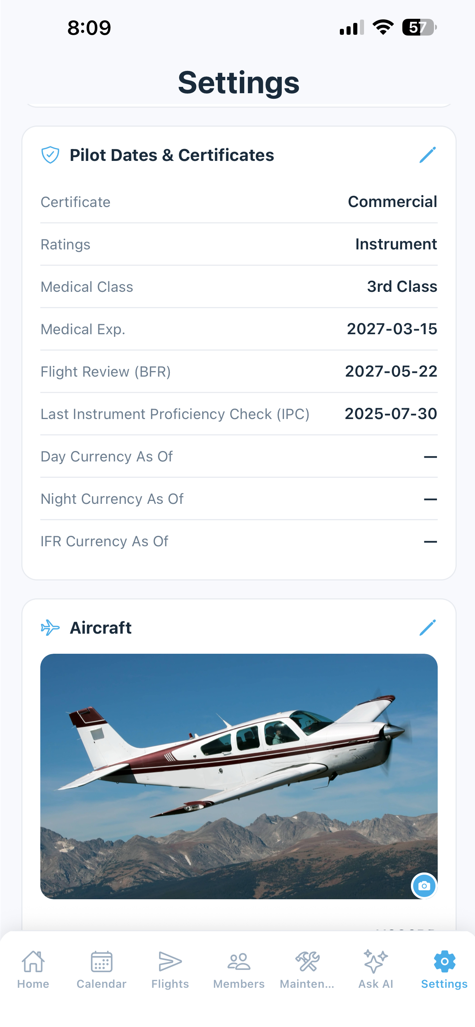
- Certificate Type — your FAA pilot certificate (Private Pilot, Commercial, ATP, CFI, CFII, MEI)
- Ratings — select all that apply (Single-Engine Sea, Multi-Engine, Instrument)
- Medical Class — your FAA medical certificate class (1st, 2nd, 3rd, BasicMed)
- Medical Expiration — the date your medical certificate expires. 5-by-5 uses this for currency tracking and warns you as it approaches.
- Flight Review — the date of your most recent flight review (BFR). Currency expires 24 calendar months after this date.
- Last IPC — the date of your most recent Instrument Proficiency Check (paid plans). This resets your instrument currency.
These dates are used by the Pilot Currency tracker on the home dashboard.
Aircraft
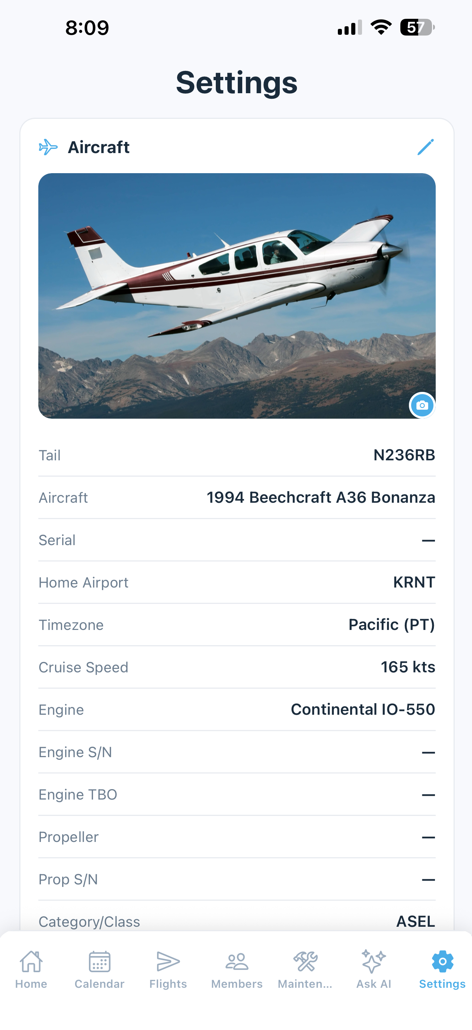
Tap the pencil icon to edit the aircraft details (Owners and Admins only). In a multi-aircraft group, this card edits whichever tail is currently selected in the aircraft picker above it — see Managing Your Fleet below for adding or removing an airframe.
- Aircraft Photo — the group’s default aircraft photo, displayed at the top of the home screen for all members. Tap to upload or change.
- Tail Number — the aircraft’s registration (e.g., N236RB)
- Aircraft — year, make, and model, selected from the shared Aircraft Catalog dropdown menus. Make and model drive AD lookups, sensible default cruise speed, and category/class. If your make/model isn’t listed, choose Other — contact support and we’ll add it.
- Engine — engine make and model, selected from dropdowns. Used for engine-specific AD lookups.
- Engine/Propeller 2 (twins) — a second engine and propeller, each with its own position (Left/Right, or Front/Rear for a Skymaster), serial, TBO and overhaul tach. Shown when the category/class is multi-engine, the make/model is a known twin, or a second engine is already saved. In a multi-aircraft group it belongs to whichever tail is selected, and the Fleet list shows both engines on that aircraft’s card.
- Home Airport — the ICAO code for your home airport (e.g., KRNT). 5-by-5 looks up the airport name and uses it for weather, route calculations, and default settings.
- Timezone — automatically set based on your home airport, but can be changed manually
- Cruise Speed — the aircraft’s typical cruise speed in knots. Used to estimate flight times when entering routes in bookings and flight logs.
- Category/Class — the aircraft’s category and class, following your group’s country: ASEL / AMEL / ASES / AMES under the FAA, SEA / MEA under CASA. Used for currency tracking.
- Gear Type — Nosewheel or Tailwheel. Tailwheel aircraft require full-stop landings for day passenger-carrying currency per FAA regulations.
- Time Tracking — choose Tach, Hobbs, or Airswitch as the basis for logging flight duration. This determines the label shown on the engine time banner, which fields appear on the flight log form, and how tach cascade management works. Pick the one your aircraft is set up to record by — most piston singles use Tach; many newer installations and rentals use Hobbs; some experimentals and modern avionics use Airswitch (which counts only when the wheels are off the ground).
Fetch Airworthiness Directives
Below the aircraft card, Owners and Admins can tap Fetch Airworthiness Directives (ADs) to automatically pull applicable ADs from the FAA Federal Register. 5-by-5 searches based on your aircraft’s make/model and engine type, then creates maintenance items for each AD. In a group with more than one aircraft, the button fetches for the aircraft selected above it (it reads Fetch ADs for and the tail number), so pick each aircraft in turn. Items are auto-categorized as Airframe, Powerplant, or Accessories based on the directive content. See the Maintenance Tracking page for more details.
Managing Your Fleet
Groups with multi-aircraft enabled see extra controls at the top of the Aircraft card, next to the picker tabs:
- Add Aircraft — shown when your fleet has just one aircraft (no tabs to switch between yet)
- Manage Fleet — shown once you have 2 or more aircraft
Both open the same Fleet modal.
Adding an Aircraft
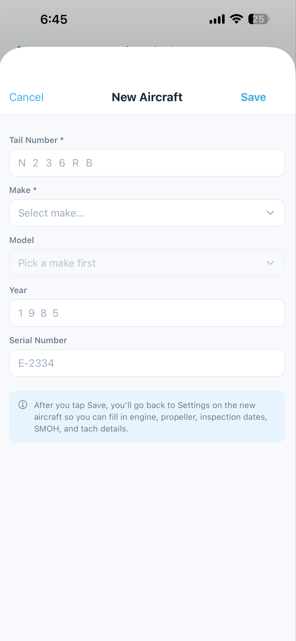
Tap Add Aircraft (or Manage Fleet → Add Aircraft) and fill in the essentials:
- Tail Number (required)
- Make (required), selected from the shared Aircraft Catalog
- Model, Year, Serial Number
Save, and 5-by-5 automatically opens the full Aircraft edit form (the same one described above) pre-filled with what you just entered, so you can fill in engine, propeller, home airport, rate, and inspection details right away — or skip them for now and come back later. The picker also switches to the new aircraft automatically. If you picked a known twin (a Baron, Seneca or DA42, say), the aircraft starts as multi-engine (AMEL in the US, MEA in Australia), so that form includes the second engine and propeller.
Removing an Aircraft
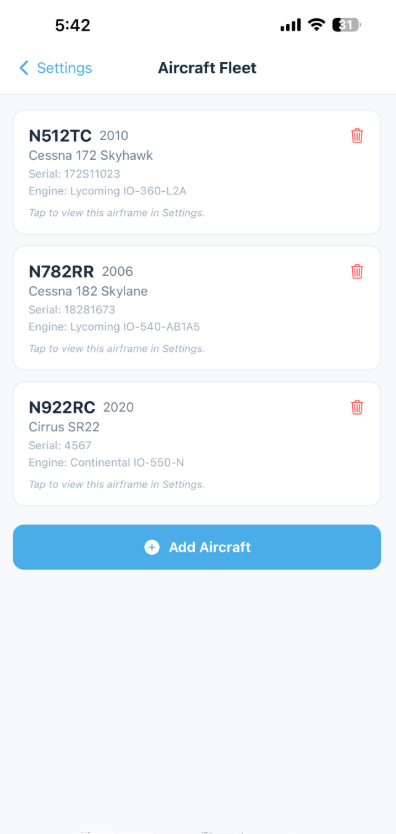
In the Fleet modal, tap the trash icon on any aircraft’s tile. This is a soft removal, not a permanent delete: the aircraft disappears from the picker and can’t be selected for new flights, bookings, or maintenance items, but its entire flight log, bookings, maintenance history, and expenses stay on file exactly as they were — nothing about past billing or pilot currency tracking is lost. Contact support@fly5by5.com if you ever need a removed aircraft restored.
You can’t remove the last aircraft in a group — add a replacement first if you’re swapping airframes.
My Aircraft Photo
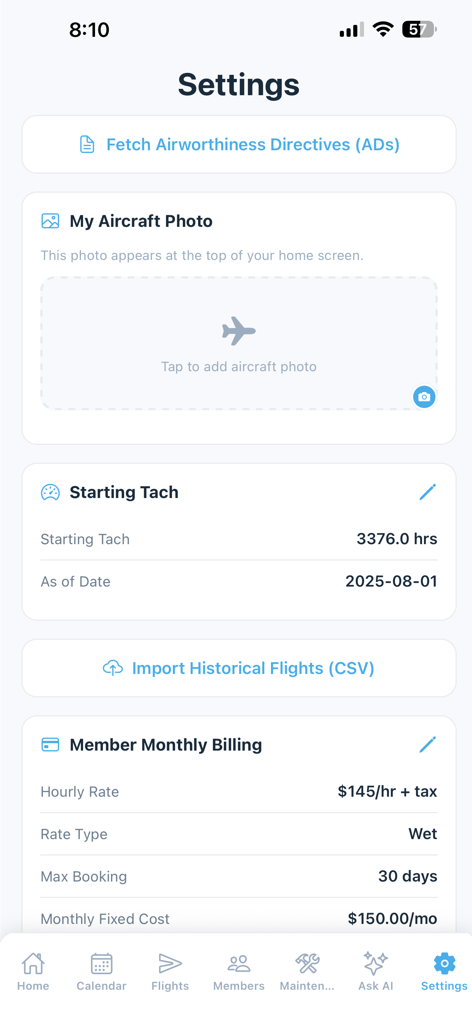
Each member can set their own personal aircraft photo that appears at the top of their home screen, overriding the group’s default photo. This is purely cosmetic — it only affects what you see on your own dashboard.
- Upload — tap to select a photo from your device
- Revert to Group Photo — if you’ve set a personal photo, this button removes it and reverts to the shared group photo
Starting Tach
(Owners and Admins only)
This sets the baseline for 5-by-5’s tach tracking system. All flight logging builds on this starting point.
- Starting Tach Reading — the specific tach time you want to begin tracking from (e.g., 1247.5)
- As of Date — the date this tach reading was recorded
If you skipped the reading during setup, this is blank until you fill it in — or until the first flight is logged, whose Tach Out is saved here automatically (along with that flight’s date). A reading you’ve entered is never overwritten this way.
On paid plans (Solo and Club), the starting tach is the foundation for tach cascade management — 5-by-5 automatically maintains an unbroken tach continuum from this point forward. When you insert a flight between existing flights, the app will ask whether you want to shift earlier flights back or later flights forward to preserve continuity. On the free tier, the starting tach is stored as a reference point, but 5-by-5 does not actively manage tach continuity between flights.
Important: On paid plans, changing the starting tach after flights have been logged will shift all recorded tach values to maintain continuity. 5-by-5 will warn you before making this change.
Import Historical Flights
(Owners and Admins only)
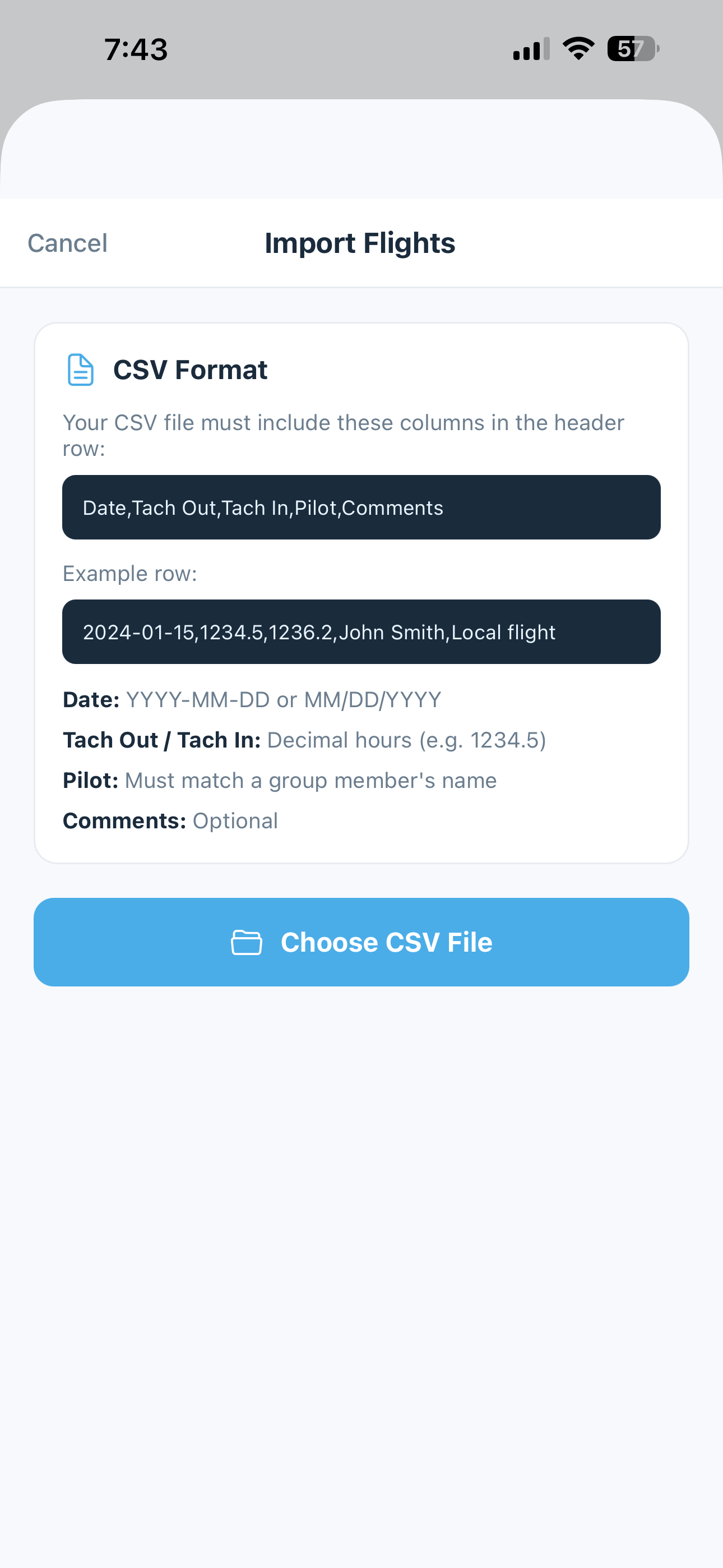
If you have historical flight data from before you started using 5-by-5, you can bulk import flights via a CSV file. ForeFlight and Garmin Pilot logbook exports are detected and parsed automatically, as is 5-by-5’s native CSV template.
- Tap Import Historical Flights (CSV)
- Select your CSV file from your device
- 5-by-5 validates each row and flags any errors
- Review the import summary and any validation issues
- Confirm to import the flights
See Importing Data for column requirements, format details, and how tach cascade handles inserts.
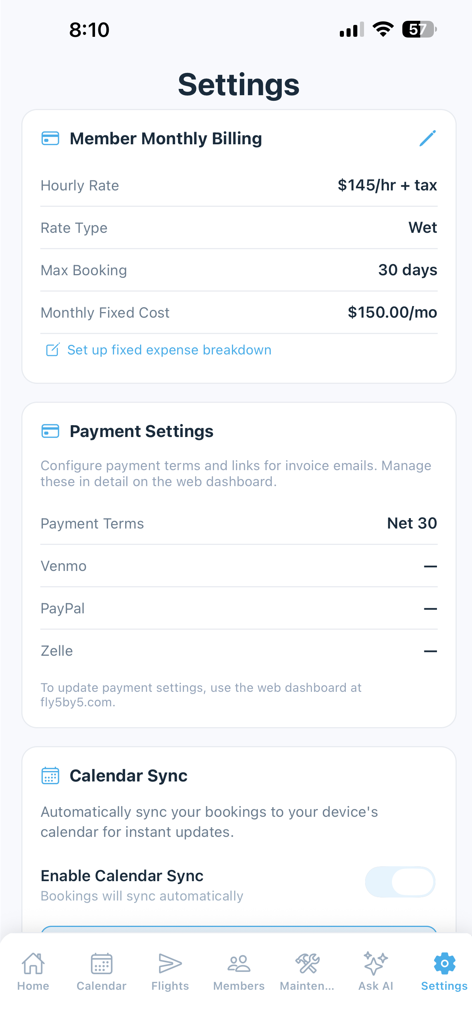
Member Monthly Billing
(Club plans — Owners and Admins can edit)
These settings control how 5-by-5 calculates estimated monthly costs for each contributing member on the home dashboard.
- Hourly Rate — the per-hour rate your group charges for flying time
- Rate Type — Wet (fuel included in the hourly rate) or Dry (fuel billed separately)
- Max Booking Length — the maximum number of days a member can book the airplane in a single booking
- Monthly Fixed Cost — a fixed monthly cost shared across all members for hangar, insurance, reserves, etc. See Fixed Expense Items below for the line-item breakdown.
The hourly rate and monthly fixed cost are used to calculate the Estimated Monthly Bill shown on each member’s home dashboard.
Not every member contributes to the fixed-cost split. Members flagged as Hourly billing only on the Members screen pay only for the hours they fly and are excluded from the Monthly Fixed Cost denominator — useful for guest pilots, infrequent flyers, or hangar managers who don’t want a base monthly charge. Mechanics are also excluded by default. See Members & Roles > Hourly-Only Members for how to flag a member.
Fixed Expense Items
(Club plans — Owners and Admins can edit)
If you want to break down your monthly fixed cost into specific line items so members understand what they’re paying for, tap Set up fixed expense breakdown under the Monthly Fixed Cost row.
For each line item, enter:
- Name — e.g., “Hangar Rent”, “Insurance Premium”, “Engine Reserve”
- Monthly Amount — the dollar amount per month
- Subject to sales tax — check if the line item is taxable in your jurisdiction. The per-member preview shows the post-tax amount when checked.
The total of all line items replaces the single Monthly Fixed Cost figure. Each member’s share is the total divided by the number of fixed-share members (mechanics and hourly-only members are excluded from the denominator). The per-member breakdown is shown live as you edit so you can see exactly what each member will see on their bill.
Tip: The line-item breakdown shows up on the Finances page on the web dashboard too, and gives members visibility into why their monthly fixed share is what it is. Clubs that itemize tend to get fewer "why does my bill say $850?" questions from members.
Setting up sales tax authorities themselves (the actual rates and jurisdictions — e.g., "WA State Sales Tax" at 6.5%) is a web-only task, done from the web dashboard's Settings → Billing → Sales Tax Authorities card — see Web Settings. Mobile only lets you mark a fixed expense line item as taxable; it doesn't let you create or edit the authorities.
Payment Settings
(Club plans, Owners and Admins only)
A read-only summary of how members pay their monthly invoices — Payment Terms (e.g., Net 30), and whichever of Venmo, PayPal, or Zelle the group has configured as alternative payment methods.
This card is view-only on mobile. To actually change the payment due term or add/edit Venmo/PayPal/Zelle, use the web dashboard’s Settings → Billing → Payment & Invoice Settings — see Web Settings. Detailed Stripe Connect setup (the automated ACH/card payment option) is also done from there. See Online Payments and Finances.
Calendar Sync (Paid plans)
Sync your bookings to your phone’s built-in calendar (Apple Calendar, Google Calendar, etc.).
- Enable Calendar Sync — toggle on to activate automatic syncing. When enabled, all bookings appear as events in your phone’s calendar and update automatically when bookings are created, modified, or deleted.
- Sync All Bookings Now — tap to do a one-time sync of all existing bookings to your calendar. Useful if you just enabled sync and want to backfill existing bookings.
Calendar Sync requires a paid plan (Solo or Club). Free tier users will be prompted to upgrade when they enable it.
Flying Club Settings (Club plans, Owners and Admins)
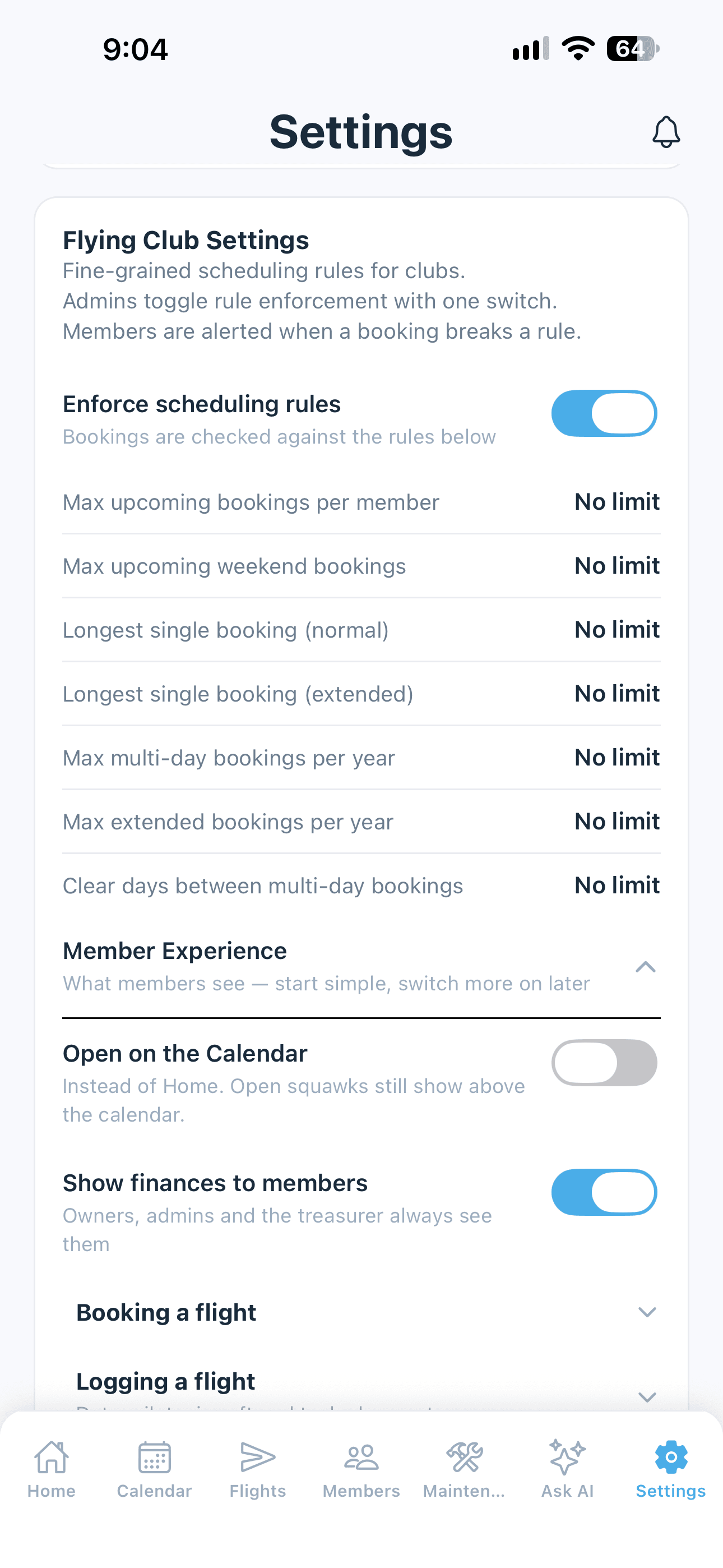
One card for the rules and the look of 5-by-5 that a club decides for everyone. It’s available to every paid club. Nothing in it is on by default, so a club that never opens it carries on exactly as before.
Scheduling Rules
Turn on Enforce scheduling rules and the rules appear underneath. Tap a rule to set it; leave it blank for no limit.
- Max upcoming bookings per member — how many bookings one member may hold at once, across all aircraft
- Max upcoming weekend bookings — of those, how many may touch a Saturday or Sunday
- Longest single booking (normal) — in days or hours. Anything longer counts as an extended booking.
- Longest single booking (extended) — the absolute ceiling
- Max multi-day bookings per year and Max extended bookings per year — per member, per calendar year
- Clear days between multi-day bookings — stops one member chaining long bookings together
When a member’s booking breaks a rule, they’re told which rules and why, all at once, and asked to contact the owner for an exception. Owners and admins see the same message but can choose to go ahead anyway. Once your club sets its own booking lengths, the older Max Booking Length setting no longer applies.
Rules are checked whenever anyone books, in the app or on the web dashboard. A booking that breaks one is refused for members (with every broken rule listed at once and a pointer to the club owner); an owner or admin sees the same list and can choose Proceed in the app or Save anyway on the web.
Member Experience
Tap Member Experience to open the club-wide defaults for what members see. The settings are grouped, and each group opens with a tap so the list stays short. Every member can change most of these for themselves under My View.
Club-wide
- Open on the Calendar — members open the app on the Calendar instead of Home. Open squawks still show above the calendar. On the web dashboard, members land on the Flights page, where the calendar lives.
- Show finances to members — turn off and ordinary members no longer see money: no Member Balances, no Est. Monthly Cost, no billing card on Home, and no Finances page on the web dashboard. Owners, admins, and the treasurer still see everything, and costs keep being recorded in the background. This is the one setting members can’t change for themselves.
Booking a flight
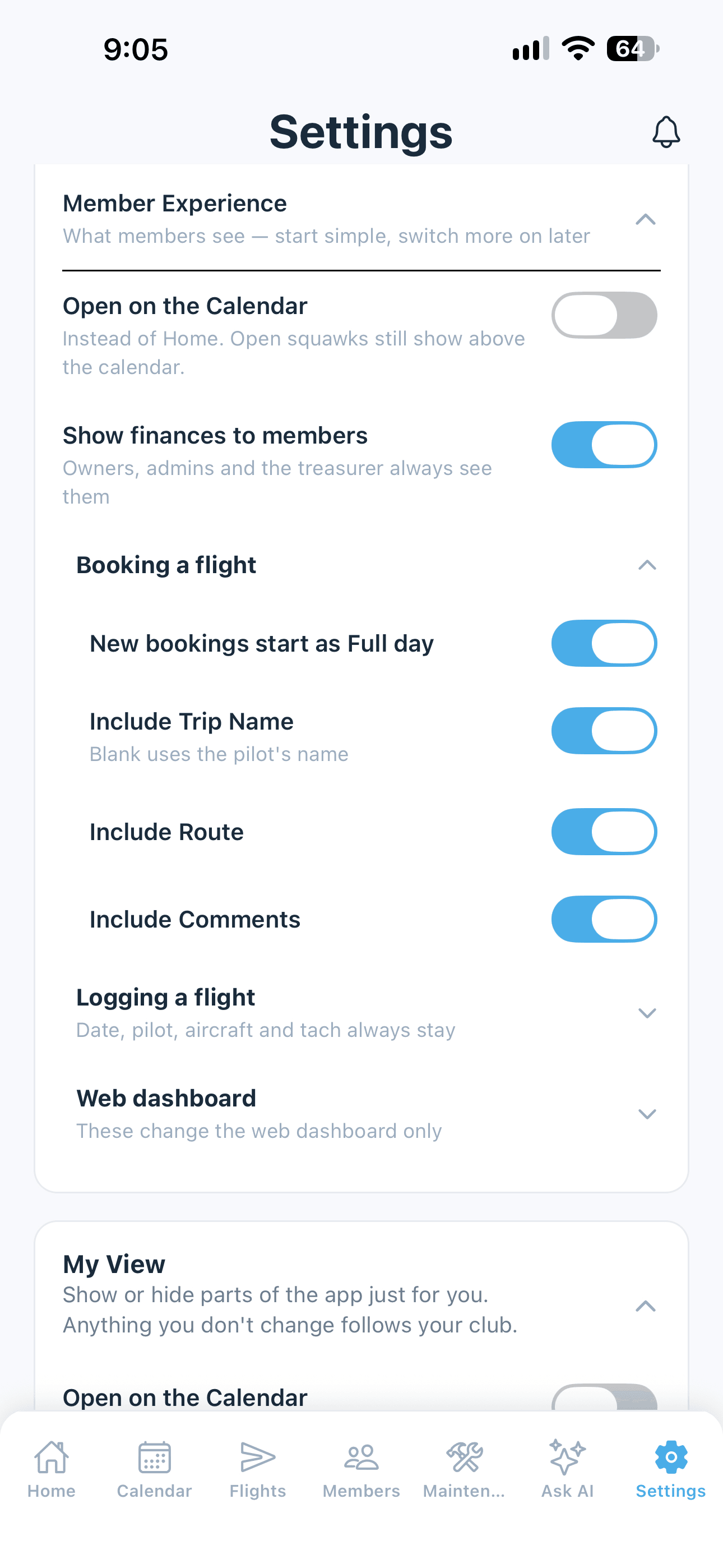
- New bookings start as Full day — turn off to start new bookings with times instead
- Include Trip Name — when shown, it’s optional; left blank, the booking is titled with the pilot’s name
- Include Route
- Include Comments
Logging a flight
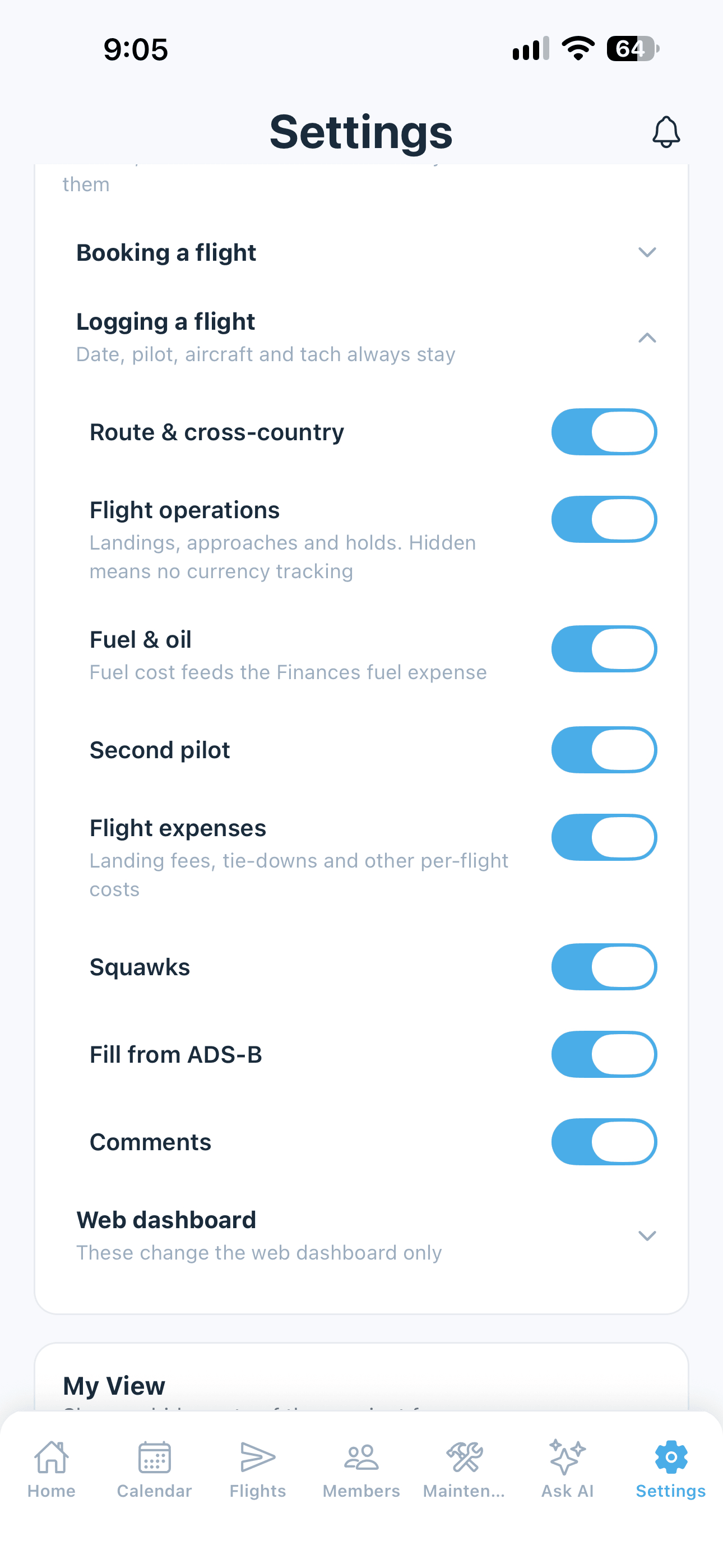
Hide the parts of the flight log your club doesn’t use. Date, pilot, aircraft, and tach/Hobbs always stay.
- Route & cross-country
- Flight operations — landings, approaches, and holds. Hiding these stops currency tracking, because 5-by-5 no longer learns about landings.
- Fuel & oil — fuel cost feeds the fuel expense on the Finances page, so hiding it leaves that figure empty for new flights
- Second pilot
- Flight expenses — landing fees, tie-downs, and other per-flight costs
- Squawks
- Fill from ADS-B — the Prefill flight data button
- Comments
Hiding a group never clears anything already recorded. Earlier flights keep their landings, fuel, and comments, and editing one of those flights leaves the hidden values as they were.
Web dashboard
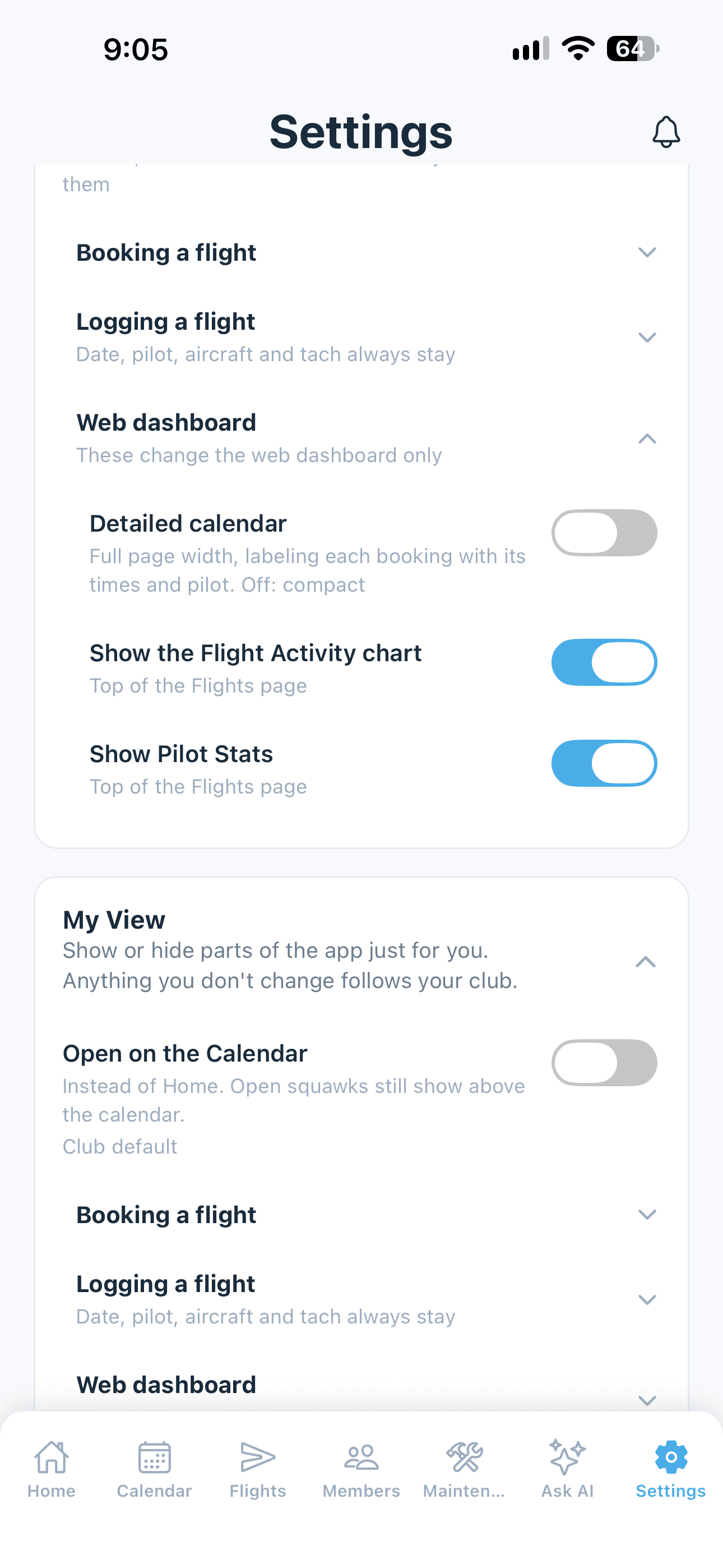
These change the web dashboard only. See Web Settings → Member Experience.
- Detailed calendar — the calendar fills the page width and labels each reservation with its times and pilot. Off, the web shows the compact calendar, the same one as the app.
- Show the Flight Activity chart and Show Pilot Stats — the two cards at the top of the Flights page
- Show the Flight Log and Flight Details — the two widgets under the calendar. Off suits a club whose pilots log each flight from their booking; owners and admins who still want the Flight Log can turn it back on for themselves in My View
My View
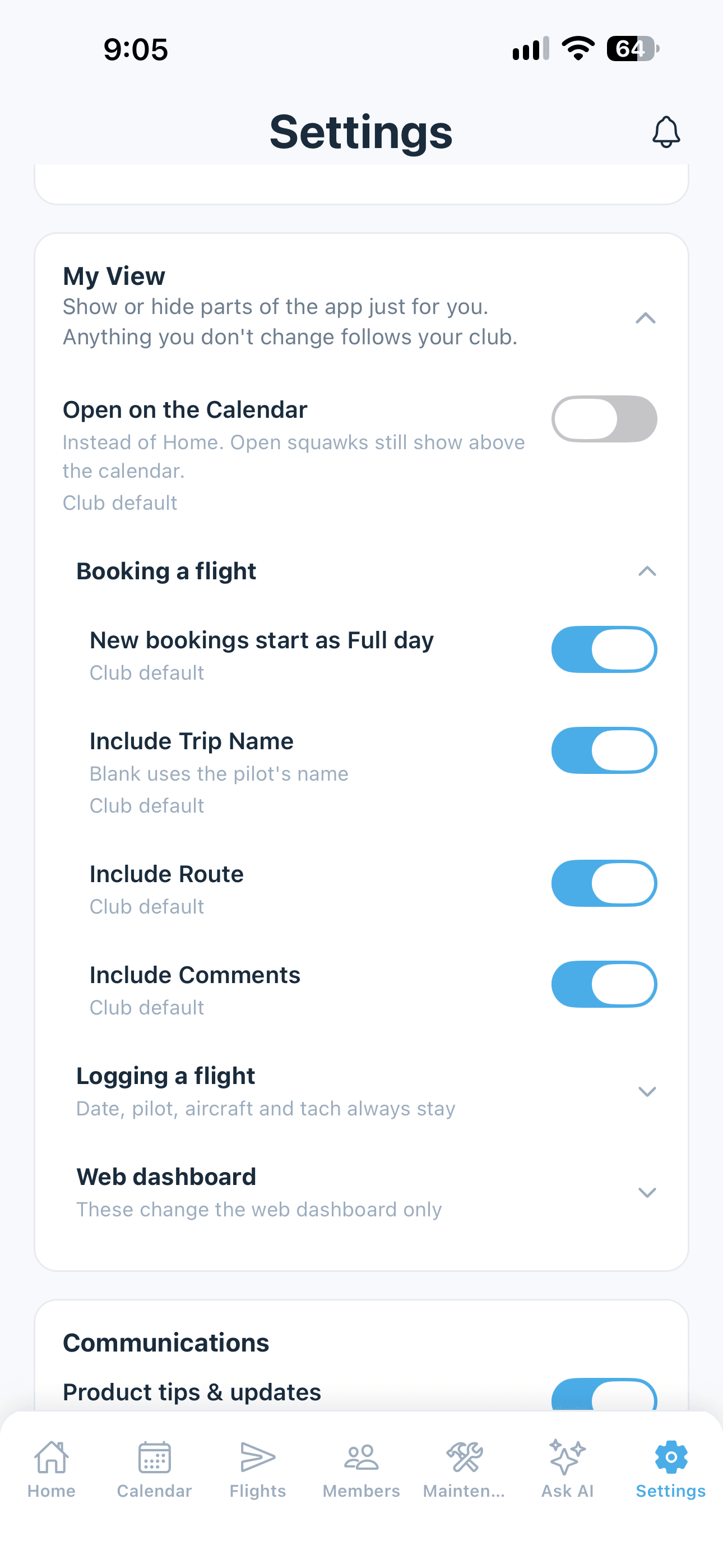
Every member of a club has a My View card: the same switches as Member Experience, set just for you. Tap the card to open it.
Each switch says whether it’s your Club default or Your choice. Anything you leave alone follows the club, so if an admin changes the club’s default later, you get the change. Anything you change stays the way you set it.
Tap Use club defaults for everything to drop all your own choices and go back to the club’s.
Show finances to members isn’t in My View: who sees the club’s money is the club’s decision.
Communications
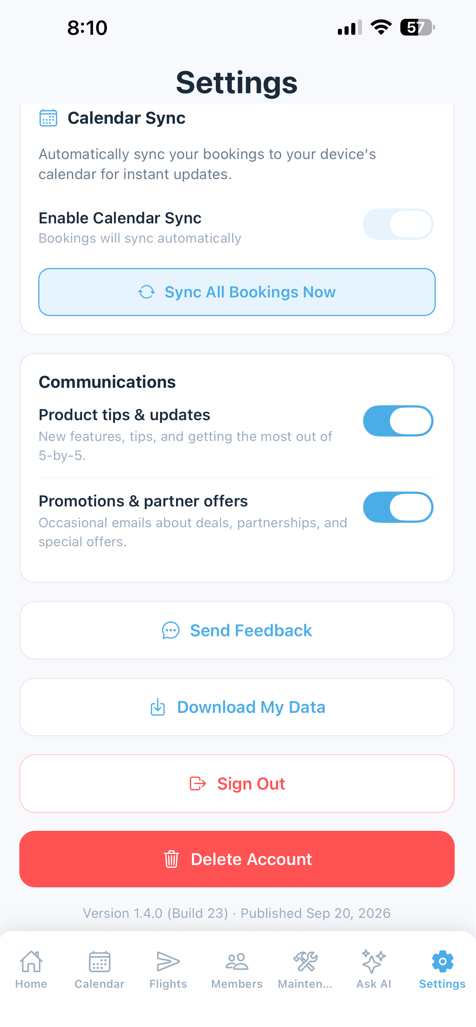
Control what emails you receive from 5-by-5.
- Product tips & updates — periodic emails about new features, tips, and getting the most out of 5-by-5. On by default.
- Promotions & partner offers — occasional emails about deals, partnerships, and special offers from carefully selected partners. Off by default. We don’t sell your data.
Transactional emails (invoices, receipts, squawk alerts, invites, password resets) cannot be disabled — they’re required for the product to function. See Email Notifications for the full list and how to allow-list sender addresses so they don’t end up in spam.
Send Feedback
Tap to compose an email to the 5-by-5 team with feedback, bug reports, or feature requests. Goes to feedback@fly5by5.com.
Sign Out
Signs you out of your account on this device. You can sign back in at any time.
Delete Account
Permanently deletes your 5-by-5 login and personal information from every group you belong to. Your flights, ledger entries, and invoices stay intact in each group’s records, still attributed to your name — only your personal details (contact, medical, certificates) are removed.
- If you belong to multiple groups, all of them are handled in one pass
- If you are the Owner of a group with other active members, you must transfer ownership there first
- If you’re the last member of a group, that group’s data is deleted along with your account
Only want to leave a single group instead? Use Leave Group — see Leaving a Group.
See Account Security → Deleting Your Account for the full breakdown of what’s kept vs. removed.
Warning: Account deletion is permanent and cannot be undone. Make sure you have any records you need before deleting. Export your flight log (Flights screen → menu → Export CSV) first if you want a copy of your records.