Notification Center
The bell in the web dashboard and the app: an in-app copy of every notice 5-by-5 emails you, so nothing is lost to a spam filter.
Overview
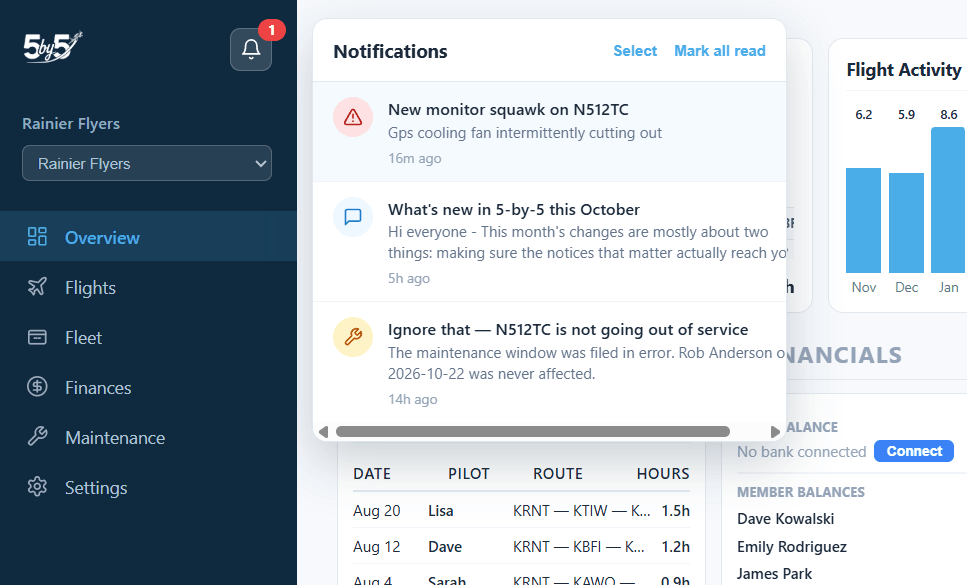
Every notice 5-by-5 emails you about your club also lands in the Notification Center, the bell icon in the web dashboard sidebar and at the top of every tab in the app. Tap it to read the full email right there, then jump straight to the page where you can act on it.
Why It Exists
Email is the least reliable way to reach a pilot. A squawk alert or an invoice from a sender your inbox hasn’t seen before often lands in spam or junk, and some members never check that folder. A grounding squawk you never saw is a real problem.
The Notification Center is the backup. Whatever happens to the email, the same notice is waiting in 5-by-5 the next time you open it. It doesn’t replace email: the email still goes out, and the steps in Keeping 5-by-5 Emails Out of Spam are still worth doing.
What Shows Up There
The same notices we email you:
- New squawk alerts, with the photo if one was attached
- Squawk resolved and Back in service, when a squawk is fixed
- Squawk withdrawn or Maintenance cancelled, when an open squawk is deleted because it shouldn’t have been filed
- Maintenance windows: your booking is on standby, the work is running over, or your flight is clear
- Monthly invoices and payment receipts
- Payment reminders for overdue bills, and renewal reminders for the club’s subscription
- Messages from your club, sent by an owner or admin with Message Members
- Product updates from the 5-by-5 team
Sign-in emails (password resets, email confirmations, invite codes) aren’t copied here. You need those before you can sign in, so they only come by email.
You won’t get a notice for something you did yourself. Whoever files a squawk, resolves it, or withdraws it isn’t sent their own notice. Everyone else is.
The Bell and the Unread Count
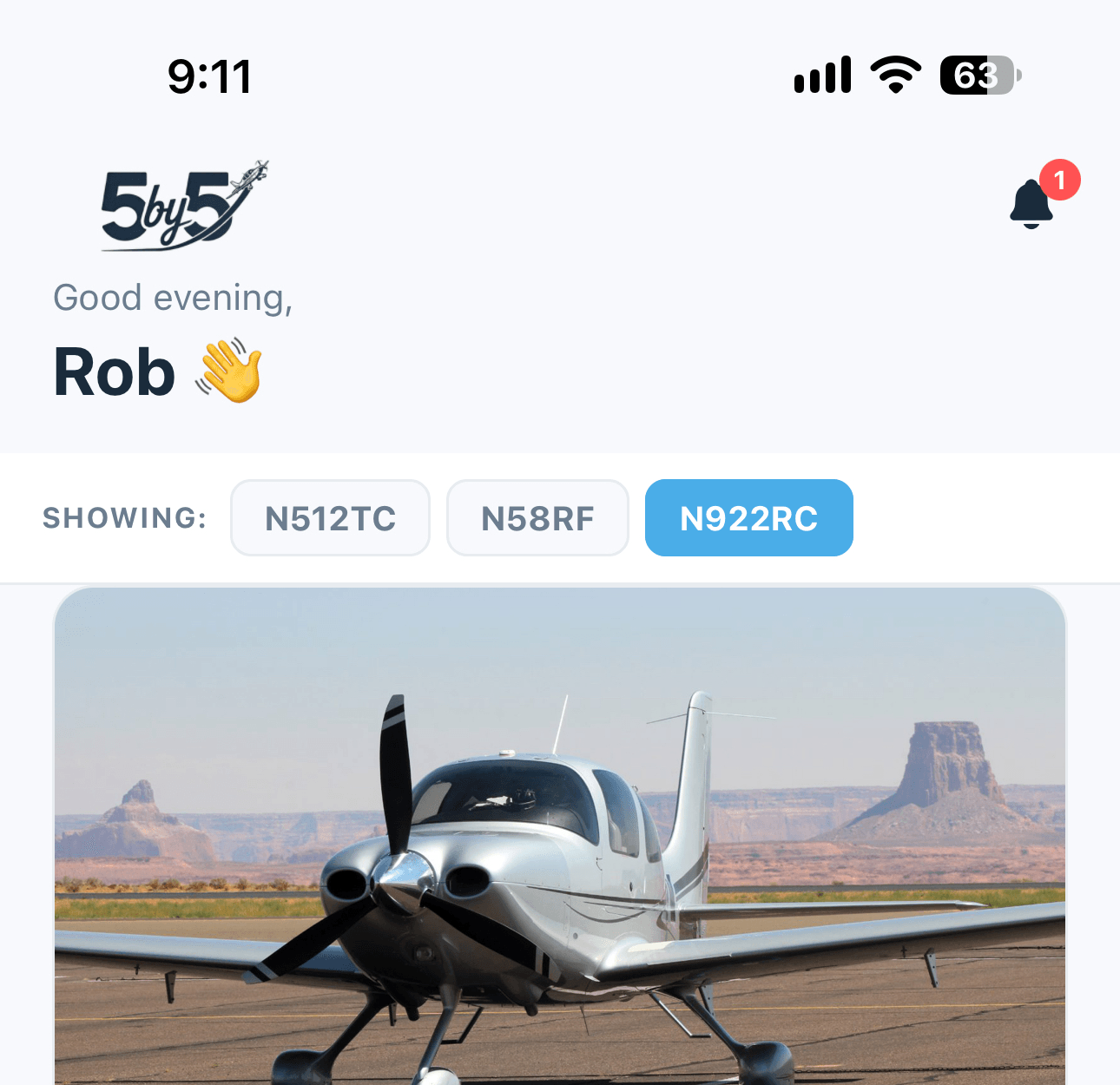
A number on the bell shows how many notices you haven’t opened yet. It clears as you read them.
- Web dashboard: the bell sits at the top of the sidebar on every page. On a phone-sized browser it’s the first item in the navigation strip.
- App: the bell is at the top of every tab, so you don’t need to go back to Home to check it.
Reading a Notice
Tap any notice to open it. You see the whole email exactly as it was sent: the squawk description and photo, the invoice line items, the full message. Opening a notice marks it read.
To act on it, use the link on the notice:
- Web dashboard: Go to page opens the page you need: Maintenance for a squawk, the Flights calendar for a standby notice, Overview for a bill or receipt.
- App: Go to followed by the tab name, for example Go to Maintenance or Go to Calendar.
Messages from your club have no link; they’re there to read.
Tap Mark all read to clear the unread count without opening each one.
Deleting Notices
Deleting a notice removes it from your inbox only, on every device you use. Nobody else’s copy is affected, and the email in your mail inbox isn’t touched. A deleted notice can’t be brought back.
On the web dashboard
- Hover over a notice and click the trash icon to delete that one.
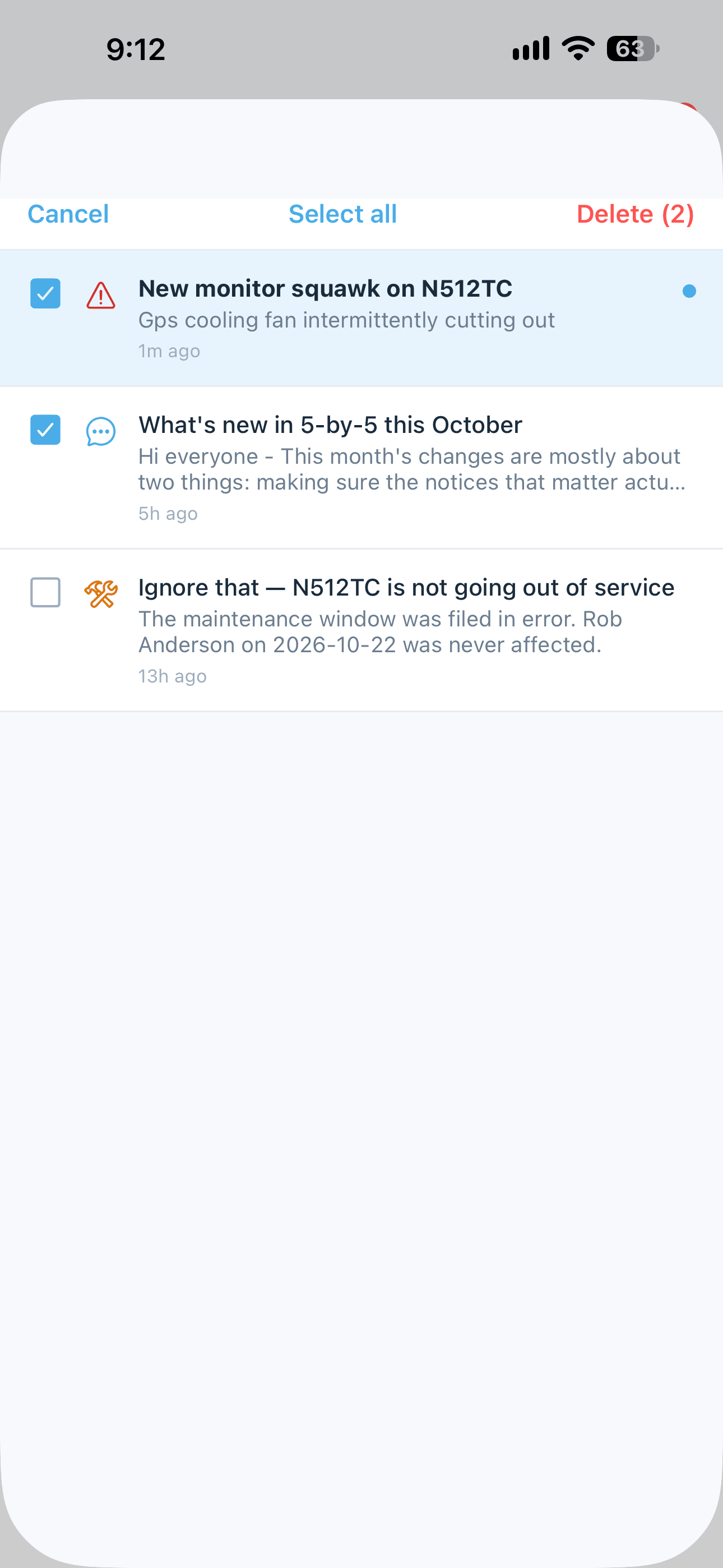
- Click Select to choose several (or Select all), then Delete. You’re asked to confirm before they’re removed.
- While reading a notice, click Delete at the top.
In the app
- Swipe a notice left or right to delete it.
- Tap Select to choose several (or Select all), then Delete. You’re asked to confirm first.
- While reading a notice, tap Delete at the top.
When a Member’s Email Isn’t Getting Through
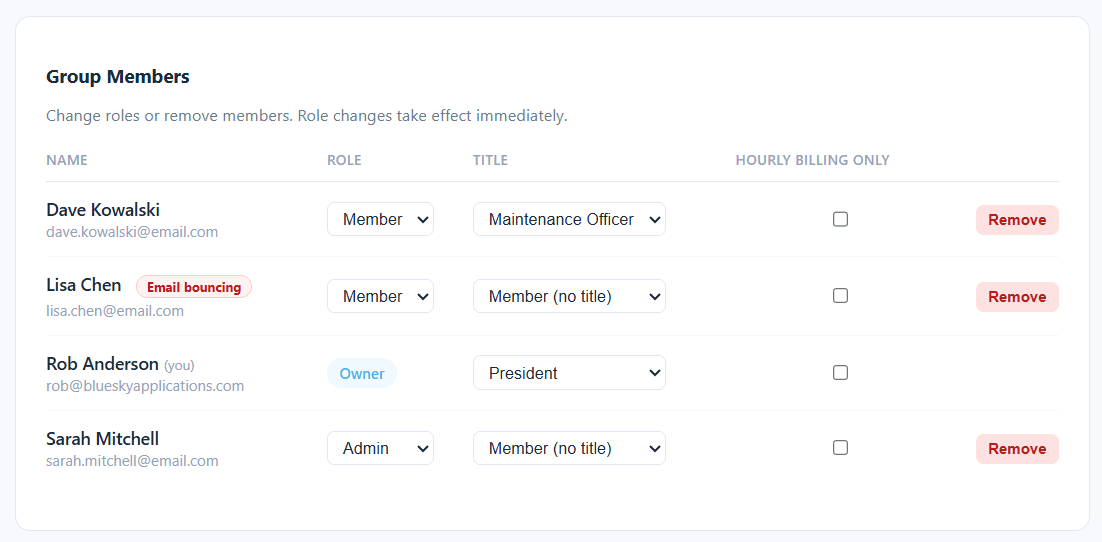
If our emails to a member are bouncing, or the member marked one as spam, owners and admins see a warning pill next to that member’s name:
It looks the same on the web dashboard (Settings → Members) and in the app (Members):
| Pill | What it means |
|---|---|
| Email bouncing | The address is rejecting our email. It may be mistyped or closed. |
| Marked our email as spam | The member reported one of our emails as spam, so our email service has stopped sending to them. |
| Email blocked | Our email service is no longer delivering to that address. |
Hover over the pill on the web dashboard, or tap it in the app, for an explanation. In every case the member still gets their notices in the Notification Center. Check their email address with them, and if they marked us as spam, ask them to look in their spam folder and contact support@fly5by5.com so we can turn their email back on.
Related Pages
- Email Notifications: every email 5-by-5 sends, and how to keep them out of spam
- Squawk Reporting: who is notified when a squawk is filed, resolved, or withdrawn
- Members & Roles: Message Members and the email-problem pills