Members & Roles
Manage group membership, roles, permissions, mechanic access, hourly-only members, and contact information.
Overview
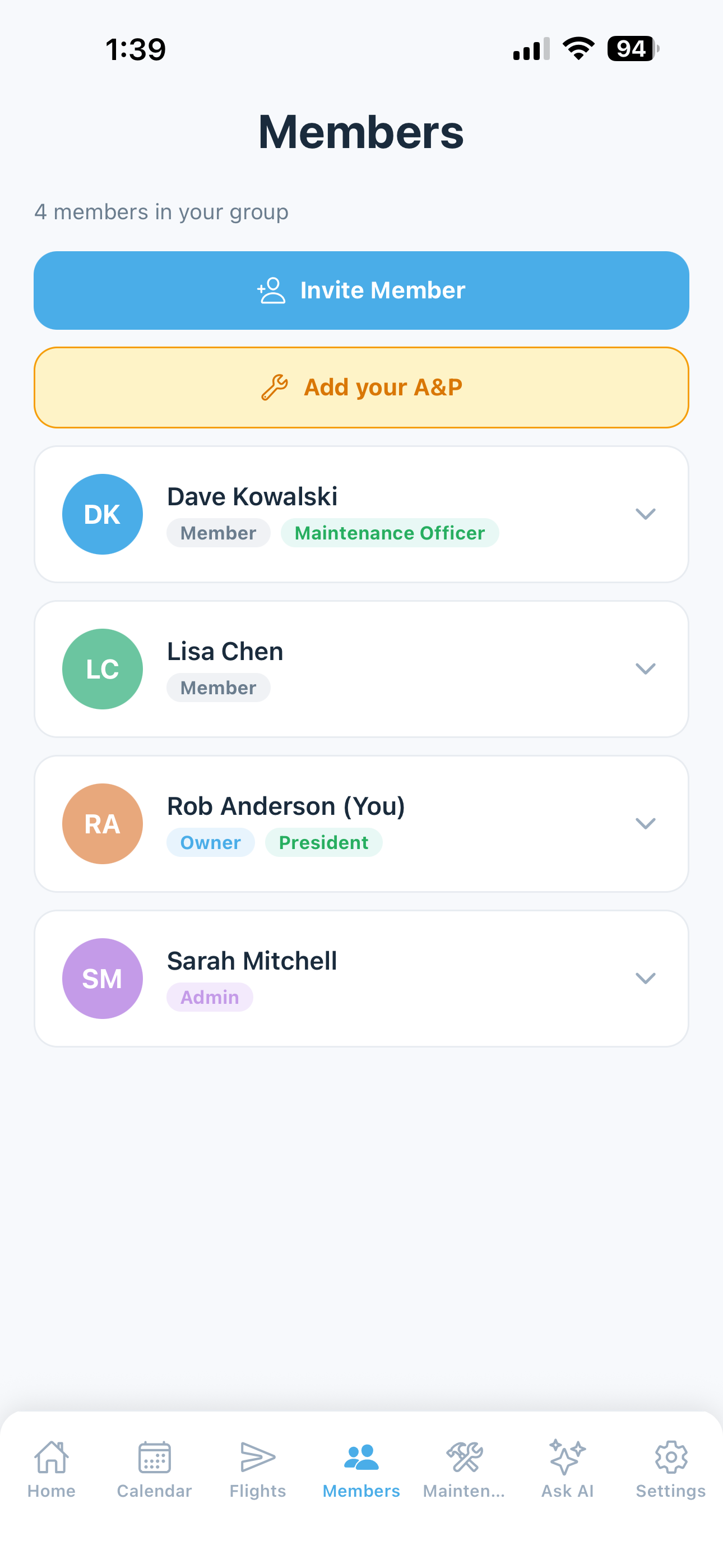
The Members screen shows everyone in your group with their contact info, role, flight stats, and quick-contact actions.
Most of the features on this page — roles, titles, invites, member management — are Club plan features. On a Solo plan, the only applicable section is A&P Mechanic Access, which allows you to give your mechanic limited access to your maintenance records.
Members in a Club group each have a role (Owner, Admin, or Member) and optionally a title (President, Treasurer, etc.). Roles control what actions a member can take. Titles are organizational labels — most are cosmetic, but the Maintenance Officer and Treasurer titles carry specific functional permissions. A separate per-member flag — Hourly billing only — controls whether the member shares the monthly fixed costs or pays for flight hours only.
Member Cards
Each member is shown as a card with:
- Avatar — profile photo or initials with their assigned color
- Name — with a “You” label on your own card
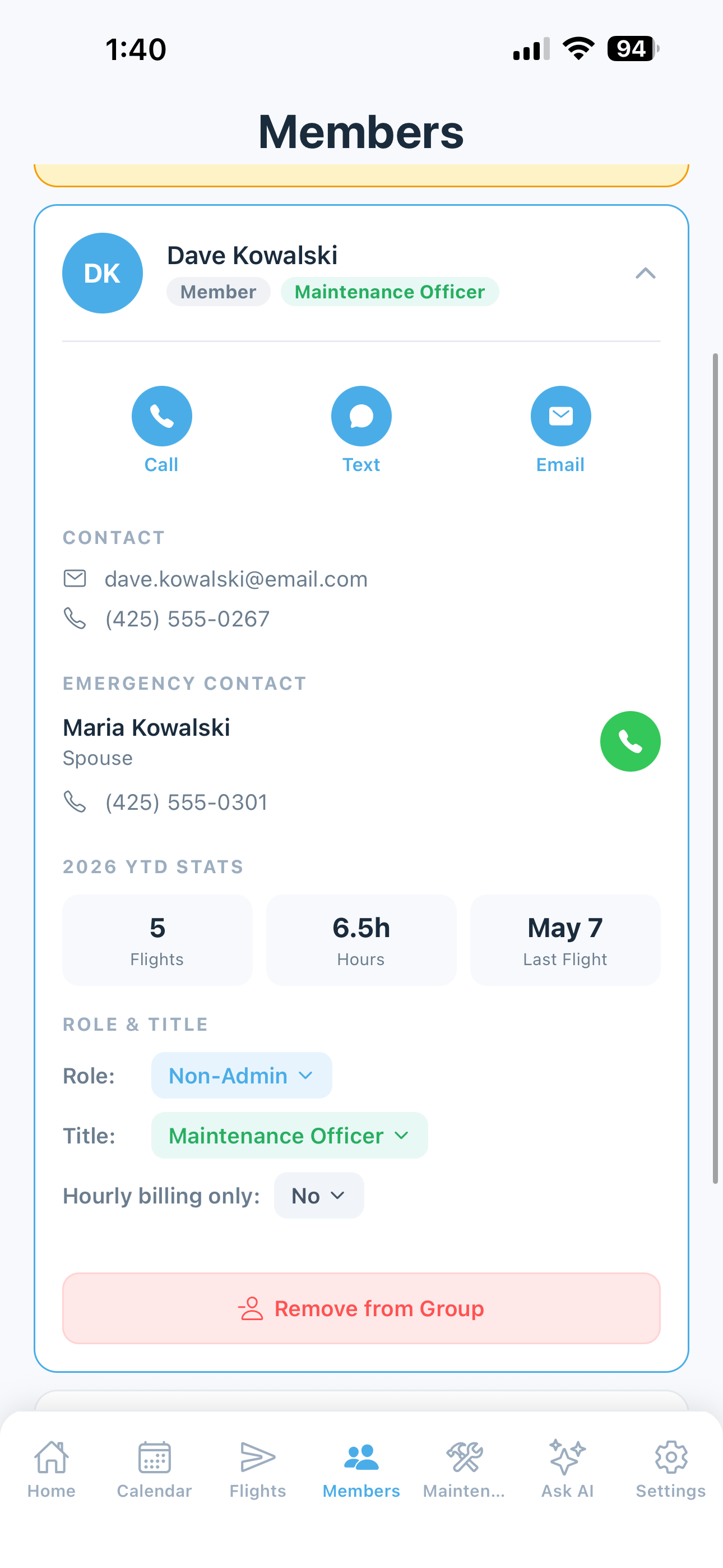
- Contact info — tap to call, text, or email directly. Available options show a blue icon; unavailable options are gray.
- Emergency contact — name, relationship, and call icon
- YTD stats — flights and hours this year, and date of most recent logged flight
- Role — Owner, Admin, or Member
- Title — optional organizational title
- Hourly billing only — small flag if applicable
- Email problem (Owners and Admins only) — a red Email bouncing, Marked our email as spam, or Email blocked pill when our emails aren’t reaching this member. Tap it for what it means. The member still gets every notice in their Notification Center, so check their address with them.
Roles & Permissions (Club plans)
Club plans support three roles:
| Role | Permissions |
|---|---|
| Owner | Full control — manages roles, transfers ownership, removes members, and controls all settings |
| Admin | Manages members and group settings, performs all standard actions |
| Member | Books flights, logs flights, reports squawks, and manages their own profile |
For most clubs, all members will be set to Admin — especially in equally shared co-ownerships where full visibility and access makes sense for everyone. The Member role is available for situations where you want to give someone more limited access, such as a new member on probation or a guest pilot.
On the free tier, all members have equal permissions with no role differentiation.
Changing a Member’s Role
An Owner or Admin can change any member’s role:
- Tap the member’s card to expand it
- Tap their current role badge (e.g., “Admin” or “Non-Admin”)
- Confirm the promotion or demotion
The change takes effect immediately.
Organizational Titles
Titles are optional labels for identifying roles within your group. Available titles:
- President
- Treasurer — grants visibility to all member balances on the home screen and web dashboard, even if their role is set to Member
- Secretary
- Safety Officer
- Maintenance Officer — grants maintenance permissions (add, edit, complete, and delete maintenance items, resolve squawks) even if the member’s role is set to Member. Also puts the member on the To: line of squawk alert emails — every member is emailed, but the maintenance roles are addressed directly.
- Other — enter a custom title (e.g., “Hangar Manager”, “Check Pilot”)
Each predefined title can only be held by one member at a time. Only the Treasurer and Maintenance Officer titles carry functional permissions — all others are for display only. If a member needs a combined title that isn’t one of the above (e.g., “Secretary / Safety Officer”), use Other to enter a custom label.
Hourly-Only Members
If a member only flies occasionally and you’d like them to pay just for their flight time without contributing to the monthly fixed costs (hangar, insurance, reserves), toggle Hourly billing only on their member card.
Effects:
- The member is excluded from the fixed-cost denominator when calculating each member’s share. If you have 4 active pilots and one is hourly-only, the fixed costs are split across the other 3.
- The Estimated Monthly Bill on their home screen shows only their flight charges, no fixed share.
- The Member Expenses table on the Finances page reflects this correctly.
This is useful for:
- Infrequent fliers who want pay-as-you-go billing
- Family members or guest pilots covered by the primary member
- Trial members who pay per flight while deciding whether to join formally
To toggle: open the member’s card, scroll to Hourly billing only, and tap the toggle. Owners and Admins can change this for any member; members cannot change their own setting.
A&P Mechanic Access (Paid plans)
On paid plans, you can give your A&P or IA mechanic access to your maintenance records without giving them access to your flights, billing, or member information.
What mechanics can do:
- View all maintenance items and their history
- Mark maintenance items as complete
- Open the scanned logbooks in the Documents Library — airframe, engine, and propeller (they cannot see invoices, bylaws, or other group uploads)
- View and resolve squawks
- Receive squawk alert emails automatically
What mechanics cannot do:
- View flights or flight history
- View member information or balances
- Change group settings or aircraft details
- File invoices or post bills
Adding a Mechanic
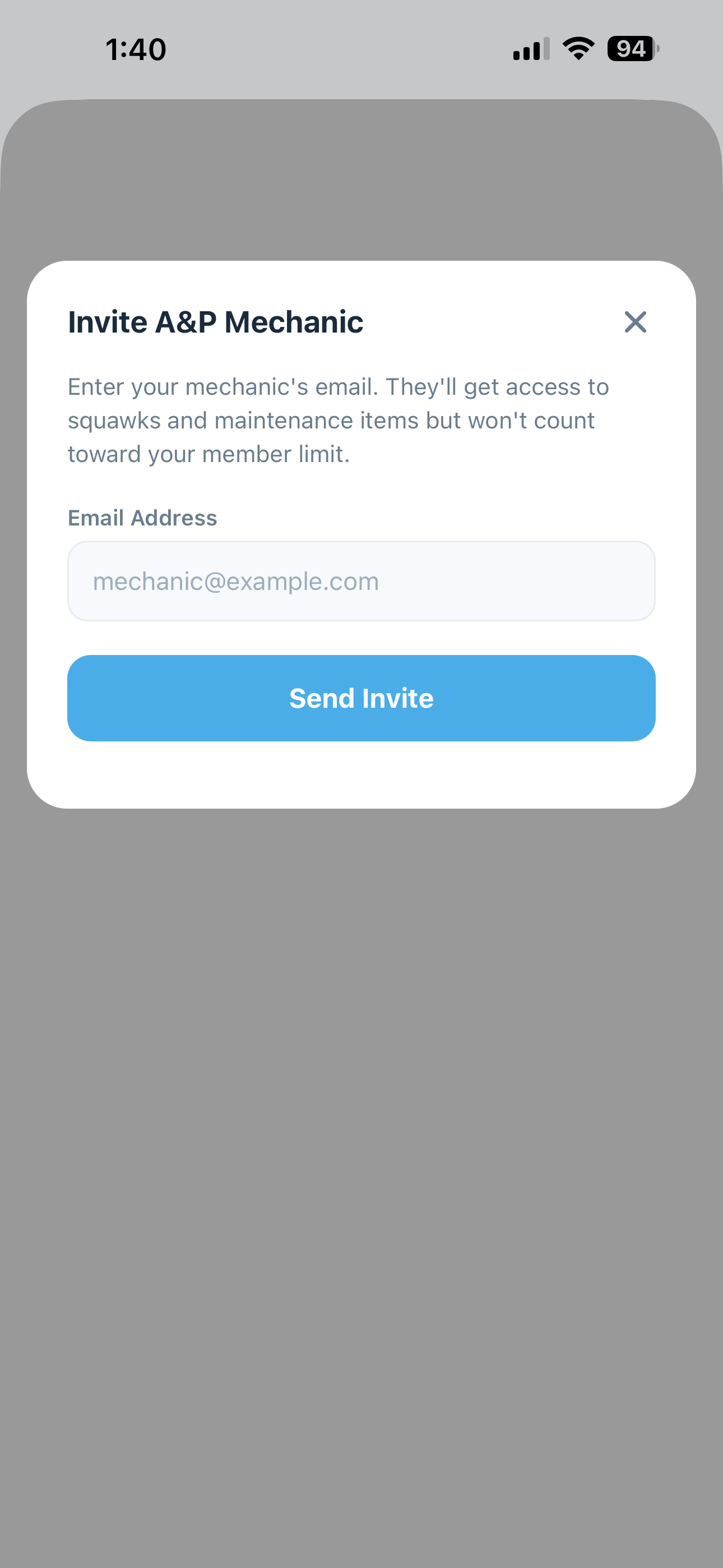
- Open the Members section of the web dashboard (or the Members screen in the Android app)
- Enter your mechanic’s email address and select Mechanic as their role
- They receive an invite code by email from
invites@fly5by5.com - They accept the invite on the web and create an account, or sign in if they already have one
- They install the app and sign in to see maintenance and squawks
The mechanic appears in your member list with a Mechanic badge. They see a streamlined view of the app limited to maintenance and squawks.
Tip: Ask your mechanic to add maintenance@fly5by5.com to their contacts. The first squawk alert email typically lands in spam — see Email Notifications for allowlisting steps to share with them.
Removing a Mechanic
Tap the mechanic’s card and select Remove Member. Their access is revoked immediately. Their completed maintenance records remain in your history.
Inviting Members (Club plans)
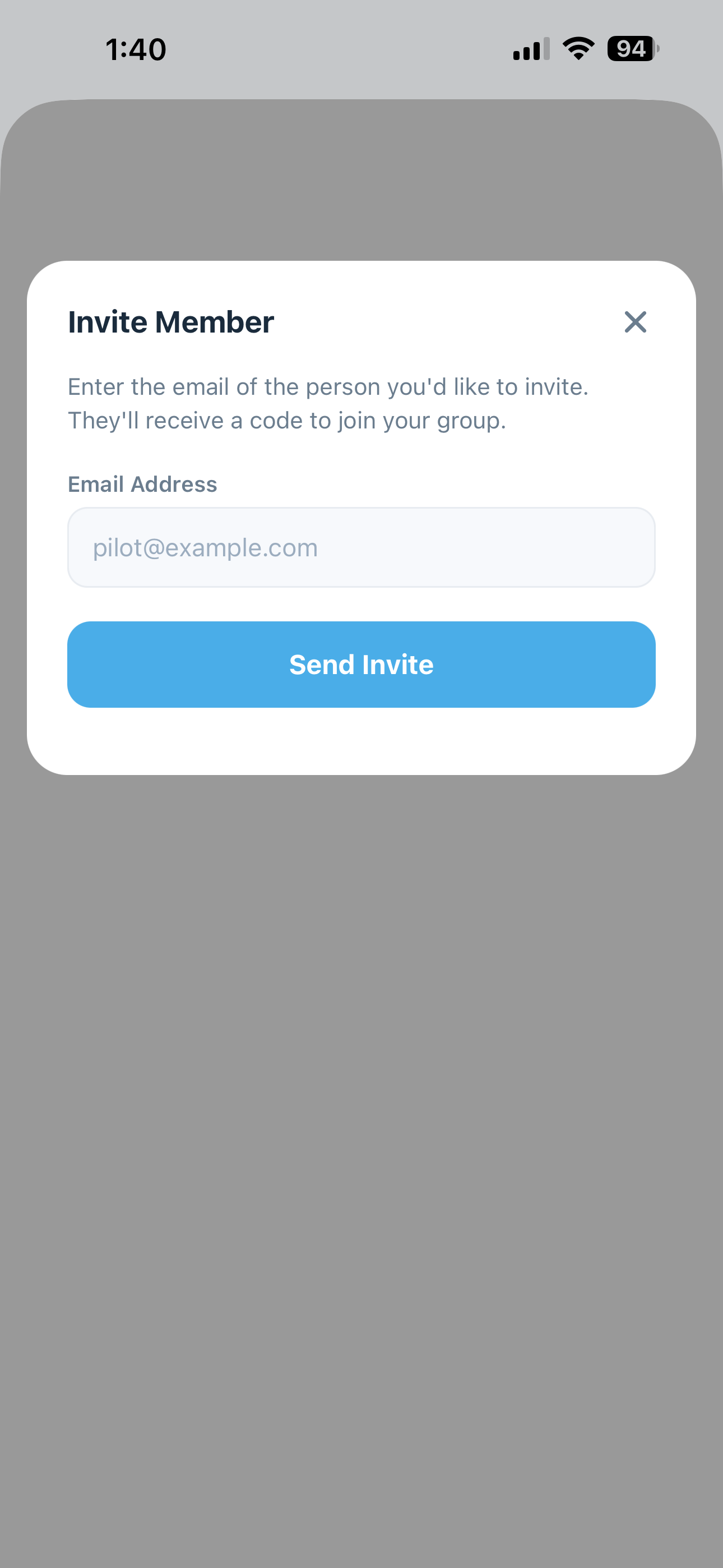
To invite new group members:
- Open the Members section of the web dashboard (or the Members screen in the Android app) and enter their email address
- They receive an invite code by email
- They click Accept your invite, create their account on the web, and enter the code
- They complete their profile, then install the app and sign in
Tracking who has not joined yet
An invited person does not appear in your roster until they accept, so until then there is nothing to chase. Outstanding invites are therefore listed in the member list itself, above the members, marked Invite sent with the date it went out and the date it expires.
Invites last 30 days. After that the code stops working and the entry reads Invite expired — invite them again to send a fresh one. You can also withdraw an invite, which stops its code working immediately — Cancel on the web dashboard, Revoke invite on the card in the Android app. (On iPhone and iPad, member management lives on the web dashboard, so the cards are read-only there.)
The app shows the same list, read-only.
Members, mechanics and roles are managed from the web dashboard. The iPhone and iPad app shows your roster but does not change it; the Android app still offers the full set.
Member limits:
- Free tier: Up to 2 members
- Club: Unlimited members
Messaging Members (Web dashboard)
Owners and Admins can write to some or all of the club’s members from the web dashboard: Settings → Members → Message Members. It’s on the web dashboard only, by design; the app doesn’t have it.
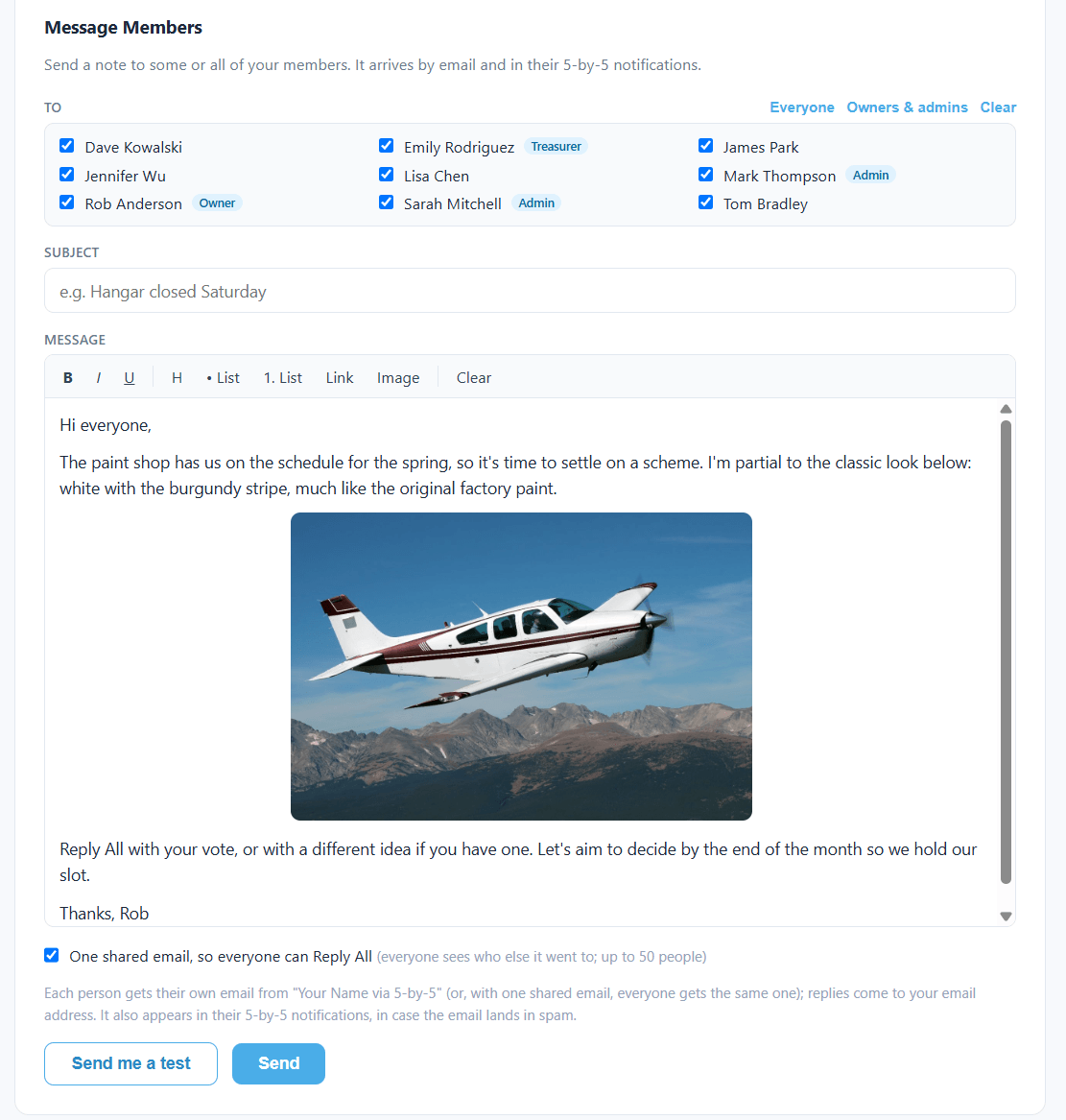
- To — tick the members you want, or use Everyone or Owners & admins to pick a group at once (Clear unticks everyone). Only members with an email address are listed.
- Subject — for example “Hangar closed Saturday”.
- Message — use the toolbar for bold, italic, underline, headings, bulleted and numbered lists, and links. You can also paste straight from Word or Google Docs: bold, italic, underline, headings, lists, and links come across, but fonts and colors don’t, so the email looks clean in every inbox.
- Images — click Image, paste a screenshot, or drag a picture file into the message, up to five per message. You’re asked for a few words describing it (some email programs hide pictures until the reader allows them, and show this instead) and an optional caption. Each picture goes where your cursor is (in the middle of a paragraph, the paragraph splits around it) and sits on its own line at the full width of the email. Hover over a picture for its buttons: move it up or down past a paragraph, change its size (L full width, M half, S small, always centered), or remove it. Pictures copied out of a web page or a Google Doc don’t come across, so save them as a file and add them with Image. Write the message so it still makes sense without the picture.
- Optionally, click Send me a test to see it as members will: it goes only to you, with [Test] in the subject.
- Click Send. You’re asked to confirm how many people it’s going to; click Send now to send it, or Keep editing to go back.
Each member gets their own email, so nobody sees anyone else’s address. It arrives from Rob Anderson via 5-by-5 (with your name), and when they hit Reply, the answer comes to you, not to 5-by-5. Every recipient also gets a copy in their Notification Center, so the message reaches them even if the email lands in spam.
Want a conversation instead of an announcement? Tick One shared email, so everyone can Reply All before sending. Everyone you picked, and you, go on a single email together, so anyone can Reply All to answer the whole group (or Reply to answer just you). Everyone on it can see who else it went to, which is no more than the Members list already shows. Replies go straight between inboxes, not through 5-by-5, so only your first message appears in the Notification Center. A shared email can go to up to 50 people; for more, send separate emails. It’s off by default, so a routine notice doesn’t turn into a Reply All thread.
Transferring Ownership (Club plans)
There are two ways to transfer ownership:
From the Members screen:
- Tap your own card to expand it
- Select Transfer Ownership
- Choose the member you want to make the new owner and confirm
From the Settings screen:
- Navigate to Settings
- Select Transfer Ownership from the group management options
- Choose the new owner and confirm
The previous owner becomes an Admin after the transfer.
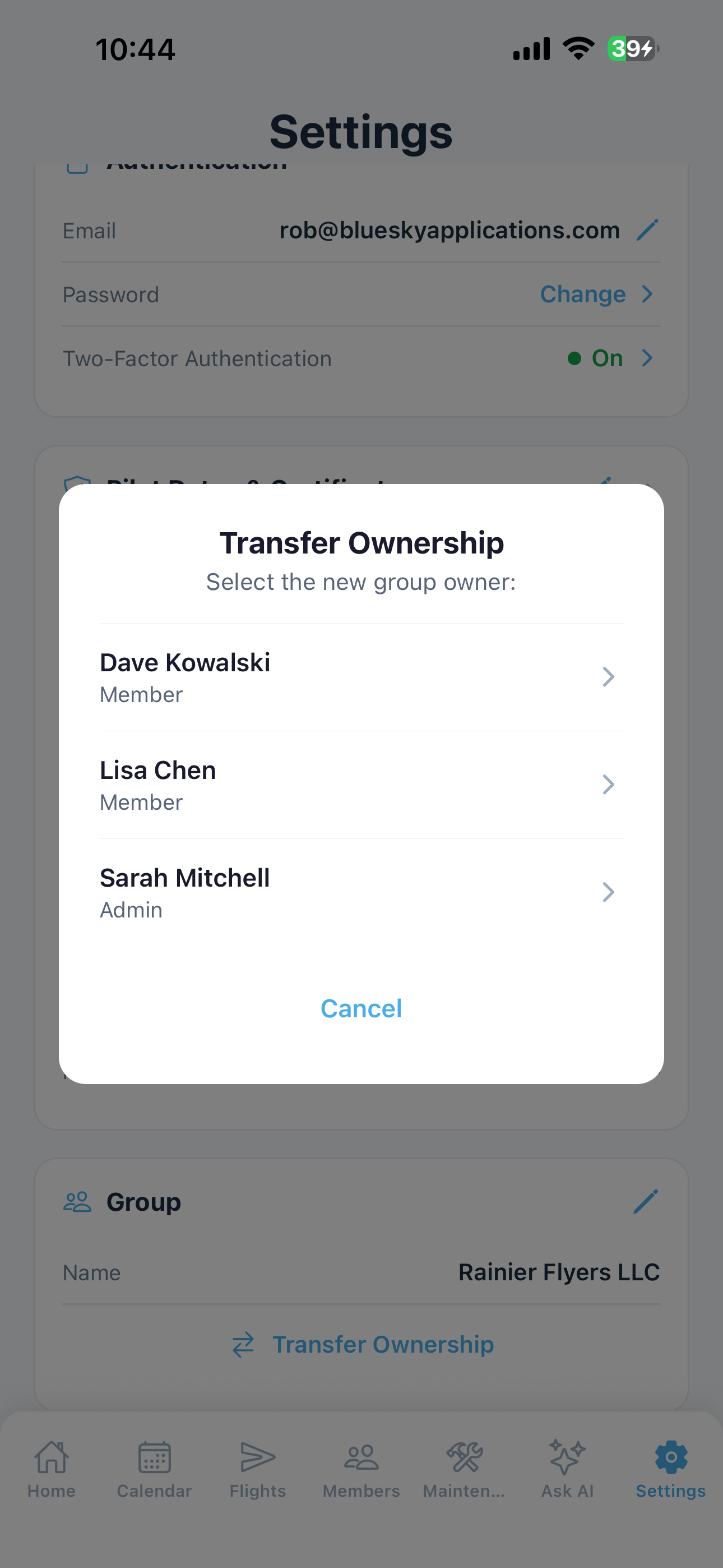
Tip: If you need to delete your account and you're the group owner, you must first transfer ownership to another member.
Removing Members (Club plans)
Owners and Admins can remove members from the group:
- Tap the member’s card
- Select Remove Member
- Confirm
The removed member’s flights, ledger entries, and invoices remain in the group for record-keeping, still attributed to their name — only their personal contact/medical/certificate details are cleared. Any outstanding balance they owed also stays in the ledger; work it out before or after removing, whichever is easier.
Leaving a Group (Club plans)
Any member — not just an Owner or Admin — can leave a group on their own, without deleting their 5-by-5 account or affecting any other groups they belong to:
- Go to Settings
- Select Leave Group
- Confirm
Leaving works the same way as being removed: your flights, ledger entries, and invoices stay in the group’s records under your name, your personal details are cleared, and you lose access to the group. If you belong to other groups, you land on one of them automatically; if this was your only group, you’re walked into creating a new one.
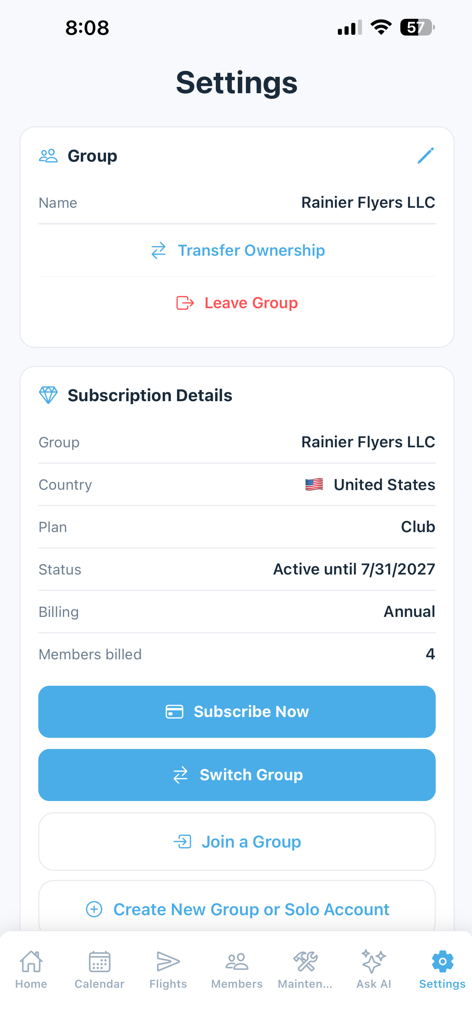
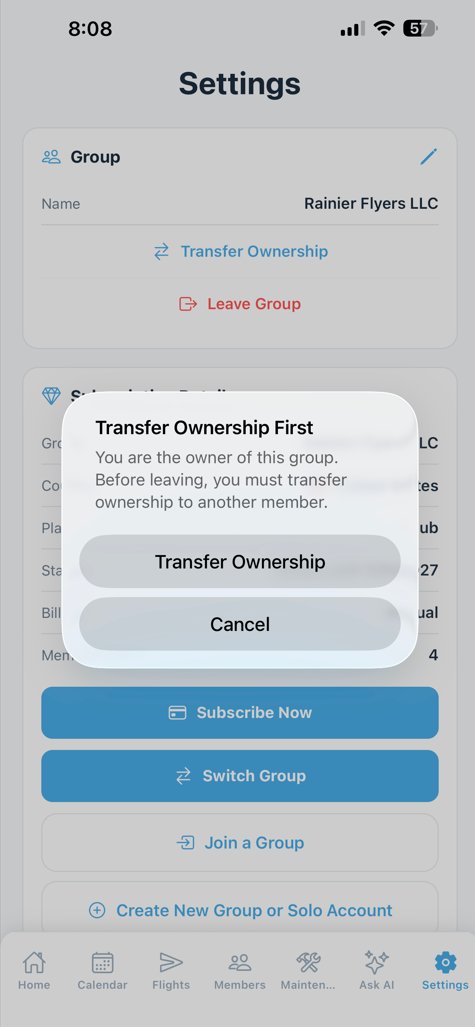
If you're the Owner and other members remain in the group, you'll be prompted to transfer ownership first — Leave Group won't complete until someone else is set as Owner.
Activity Log
Every significant member action — booking deletes, role changes, member removals, ownership transfers, hourly-only toggles — is captured in the group’s activity log. Today the log is viewable by support on request; a self-serve view is on the roadmap. Contact support@fly5by5.com if you need to investigate an unexpected change.