Fleet
Add, edit, and remove aircraft for multi-aircraft Club groups — identity, engine and propeller specs, billing rates, and inspection due dates.
Overview
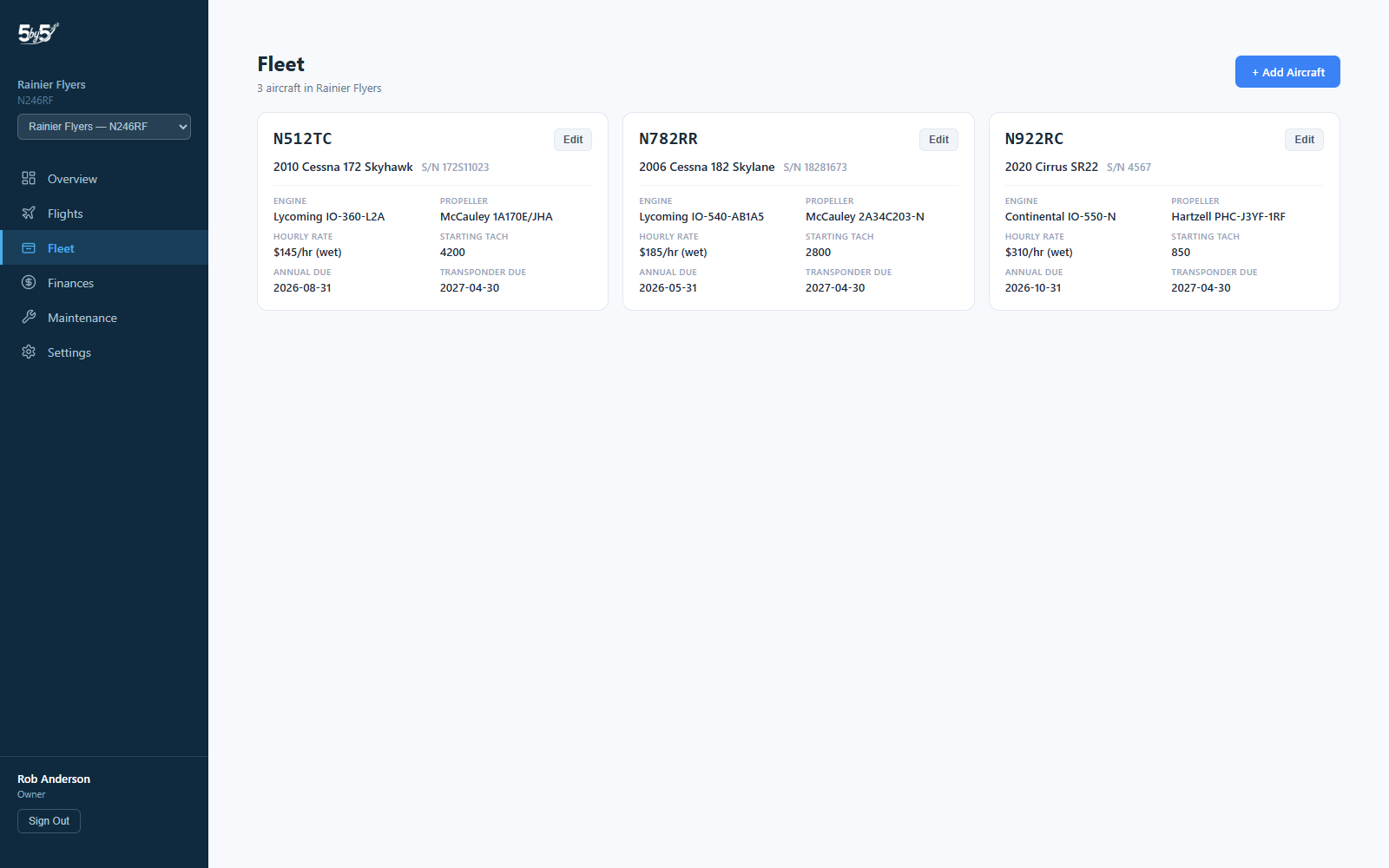
The Fleet page (/dashboard/fleet) is where Club groups manage more than one aircraft — add a new airframe, edit an existing one’s full specs, or remove one that’s left the group. It’s only relevant to multi-aircraft groups; single-aircraft groups manage their one airplane from Settings → Aircraft & Group instead.
Not seeing this page, or it says multiple aircraft aren't turned on? The Club plan covers any number of aircraft. If you operate more than one and the Fleet page isn't available yet, contact support@fly5by5.com and we'll switch it on for your group.
Adding an Aircraft
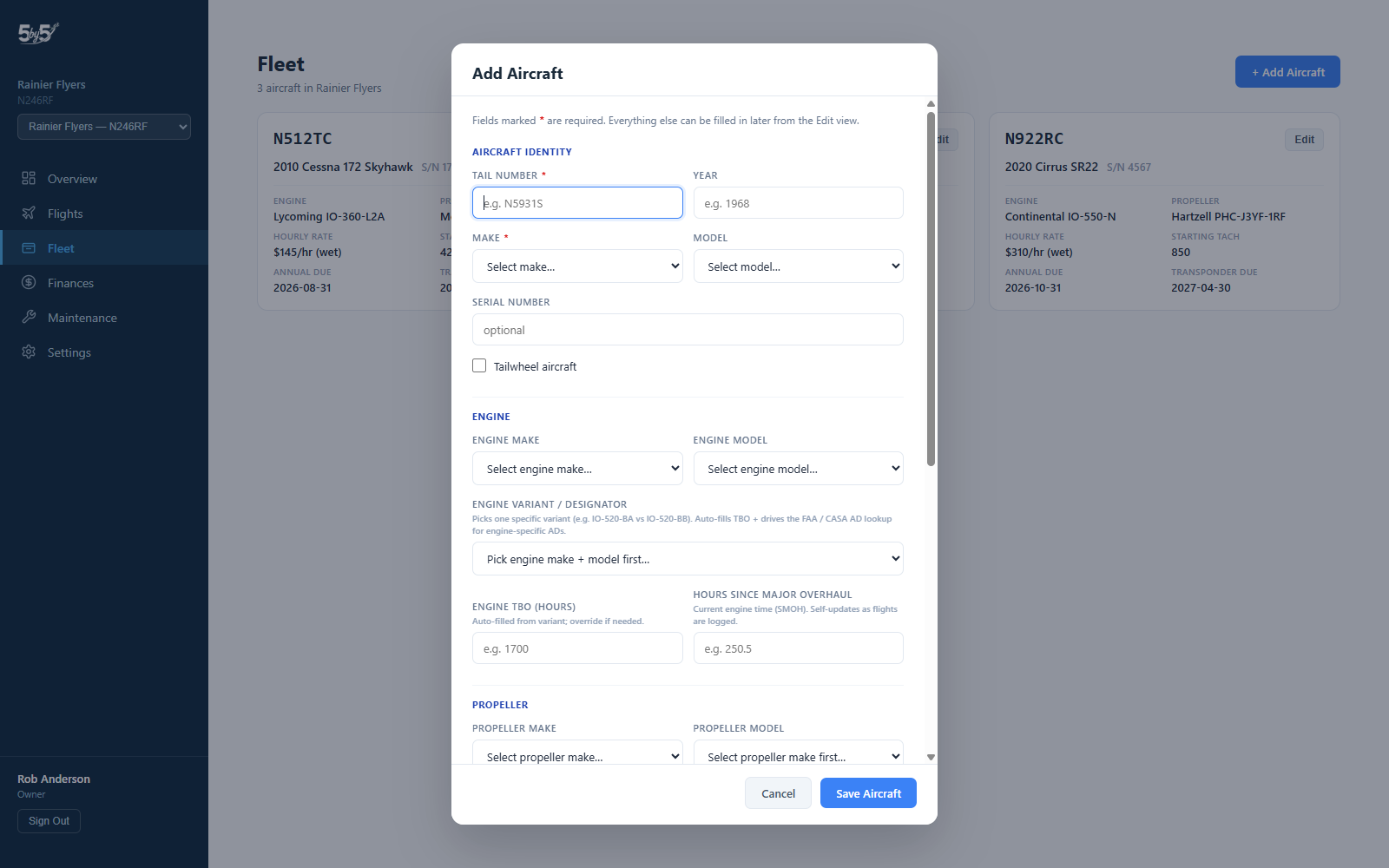
Owners and Admins click + Add Aircraft to open the Add/Edit modal, organized into labeled sections. Only Tail Number and Make are required — everything else can be filled in now or left for later.
- Aircraft Identity — Tail Number (required), Year, Make (required), Model, Serial Number, and a Tailwheel checkbox (drives day-currency landing rules the same way it does for single-aircraft groups)
- Engine — Make, Model, an auto-detected Engine Variant/Designator (picks a specific variant like IO-520-BA vs. IO-520-BB, auto-fills TBO, and drives engine-specific AD lookups), Engine TBO, and Hours Since Major Overhaul (self-updates as flights are logged)
- Propeller — Make, Model, Propeller TBO, and Hours Since Major Overhaul
- Engine & Propeller 2 (twins only) — see Twin-Engine Aircraft below
- Operations & Billing — Category/Class, Hourly Rate, Rate Type (Wet/Dry), Starting Tach, and Time Tracking (Tach/Hobbs/Airswitch) — the same per-aircraft billing fields used in Finances. Category/Class follows your group’s country: US groups choose from ASEL, AMEL, ASES, AMES and rotorcraft; Australian groups choose SEA or MEA.
- Inspection Due Dates — Annual, Transponder, Pitot-Static, Altimeter, ELT Battery, and VOR Check
Make and Model are selected from the shared Aircraft Catalog where available, which also drives sensible defaults and AD lookups — the same catalog used everywhere else in 5-by-5.
Adding an aircraft only raises the cap. Club has no per-aircraft charge: you pay per pilot, capped per aircraft (see How Club Pricing Works). If your group pays the per-pilot price, a new aircraft doesn’t change the bill. If your group is at the cap, the cap rises and the bill can rise with it, never above the per-pilot price. In that case, before the new aircraft is saved, 5-by-5 shows the new monthly total — for example, a 20-pilot club with one aircraft on annual billing sees “Adding N123AB changes your Club plan from $25.00 to $50.00 per month, billed annually. Continue?” — and only saves if you confirm. There’s no prompt during a free trial, since nothing is charged.
Twin-Engine Aircraft
Each aircraft in the fleet can have a second engine and propeller of its own. The modal adds an Engine & Propeller 2 section whenever the aircraft is a twin, which means any one of these:
- its Category/Class is multi-engine (AMEL, AMES, or MEA)
- it already has a second engine saved
- its make and model are a known twin (Baron, Duchess, Travel Air, Cessna 310/337/340/414, Diamond DA42/DA62, Twin Comanche, Seneca, Seminole)
Choosing a known twin’s make and model also switches a single-engine Category/Class to multi-engine for you (AMEL in the US, MEA in Australia).
The section has the same fields as the first engine and propeller, plus serial numbers: Position, Engine Make, Model and Variant, Engine Serial Number, Engine TBO, Hours Since Major Overhaul, then Propeller Make, Model, Serial Number, TBO and Hours Since Major Overhaul. Each engine and propeller keeps its own overhaul time and TBO.
Position is Left/Right for wing-mounted twins and Front/Rear for centerline twins like the Skymaster. The second engine defaults to Right (Rear on a Skymaster), and the first engine is always the other side, so the Engine and Propeller sections retitle themselves to match (for example Engine 1 (Left) and Engine & Propeller 2 (Right)).
On a twin’s card, the Engine and Propeller lines become Engines and Propellers and list both, for example Engines: Austro AE300 E4-B (L) · Austro AE300 E4-B (R).
Removing a second engine. If you change a twin’s Category/Class to single-engine and its model isn’t a known twin, the section offers Remove second engine. The second engine and propeller are deleted only when you then click Save. Cancel the modal and nothing changes.
A group with just one aircraft can set up its twin either here or in Settings → Aircraft & Group. Both edit the same second-engine record, so a change in one shows in the other.
Editing an Aircraft
Click Edit on any aircraft’s card to reopen the same modal, pre-filled, with every field editable.
Aircraft Photo
The Photo section at the top of the Edit modal sets the picture members see for that aircraft in the mobile app. Choose a JPEG, PNG or WebP and it uploads straight away — there’s no need to save the rest of the form. Large photos are resized in your browser before they’re sent, so a full-resolution phone picture is fine.
It’s one photo per aircraft, shared with mobile: uploading here replaces whatever was set on a phone, and vice versa.
The section only appears when editing an existing aircraft. A brand-new aircraft doesn’t have an ID yet, and the photo is filed against it — so add the aircraft first, then reopen it to add the picture.
The Aircraft Cards
Each aircraft in the fleet shows as a card with its tail number, year/make/model, serial number, engine and propeller identification (both engines and propellers on a twin), hourly rate, starting tach, and upcoming annual/transponder due dates — a quick-glance summary without opening the edit modal.
Cards also show Fixed costs — the monthly total of the recurring expenses tagged to that airframe (its hangar, its insurance, its engine reserve). It reads None tagged until you attribute something to it, and links through to Settings → Billing, where the tagging is done.
This figure is for understanding what each airplane costs you. It does not change anyone’s bill: every fixed expense is still pooled across the whole group and split equally among fixed-share members, whichever airframe it is tagged to. Costs left on Whole group — club liability, dues, the accountant — are excluded from these per-aircraft totals rather than spread across the fleet, so the card totals will usually add up to less than your monthly fixed pool.
Removing an Aircraft
Click Edit on the aircraft, then Remove from Fleet at the bottom of the modal. This is a soft removal, not a permanent delete — the aircraft disappears from pickers and can no longer be selected for new flights, bookings, or maintenance items, but its entire flight log, bookings, maintenance history, and expenses stay on file exactly as they were, so past billing and pilot currency tracking are never lost. Contact support@fly5by5.com if you ever need a removed aircraft restored.
You can’t remove the last aircraft in a group — every group needs at least one. Add a replacement first if you’re swapping airframes.
Same behavior on mobile. The mobile app's Fleet management (Settings → Aircraft → Manage Fleet) uses the identical soft-removal model. See Managing Your Fleet.
Related Pages
- The Aircraft Picker — how the rest of the app switches between aircraft once your fleet has more than one
- Settings → Aircraft & Group — single-aircraft groups manage their one airplane here instead
- Finances — per-aircraft hourly rates and expense tagging