Flights
Flight charts, pilot stats, a searchable flight log with FlightAware detail panel, a route map and printable pilot report, plus bulk import and export.
Overview
The Flights page on the web dashboard gives you a full picture of your group’s flying history — activity charts, per-pilot stats, a searchable log with FlightAware-powered flight tracks, an interactive map of every route flown, a printable per-pilot report, and bulk import and export of flight data.
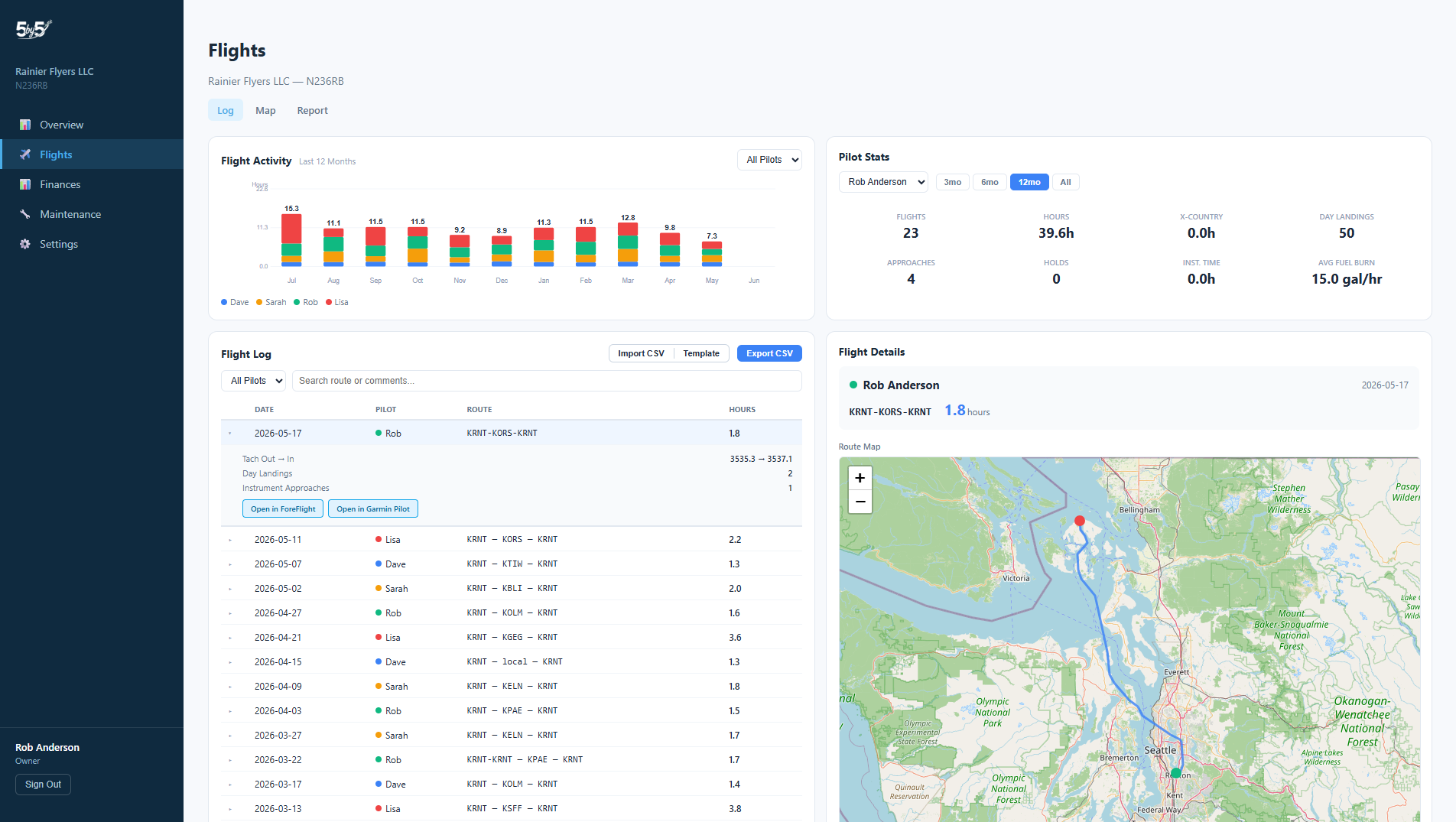
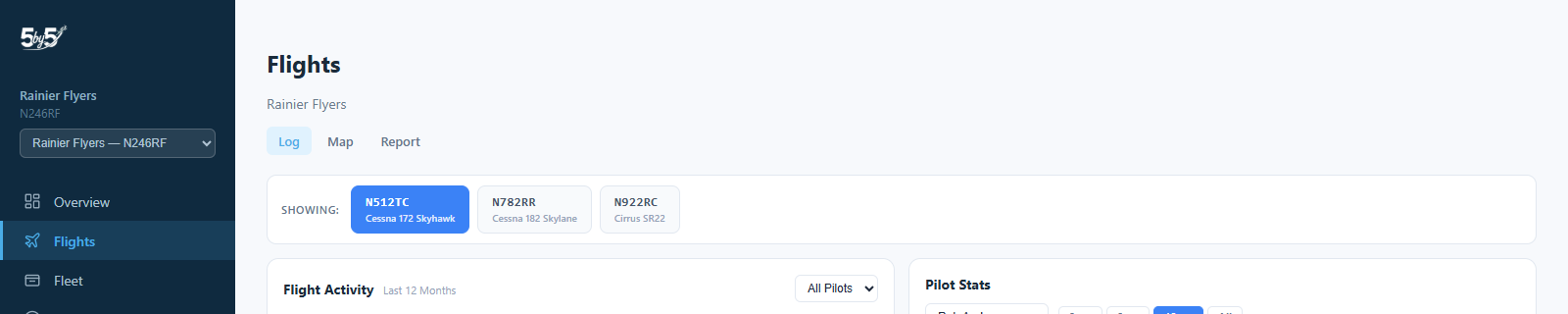
Groups managing more than one aircraft see a “Showing: [tail numbers]” aircraft picker at the top of this page — the same picker used on the mobile app’s Home, Calendar, Flights, and Maintenance screens (see The Aircraft Picker). It scopes the Flight Activity Chart, Pilot Stats, and the Flight Log table below to whichever tail is selected. The Map and Report sub-tabs are a click away on separate pages and don’t have their own aircraft picker — they always show the whole fleet, filterable by pilot instead.
Booking Flights
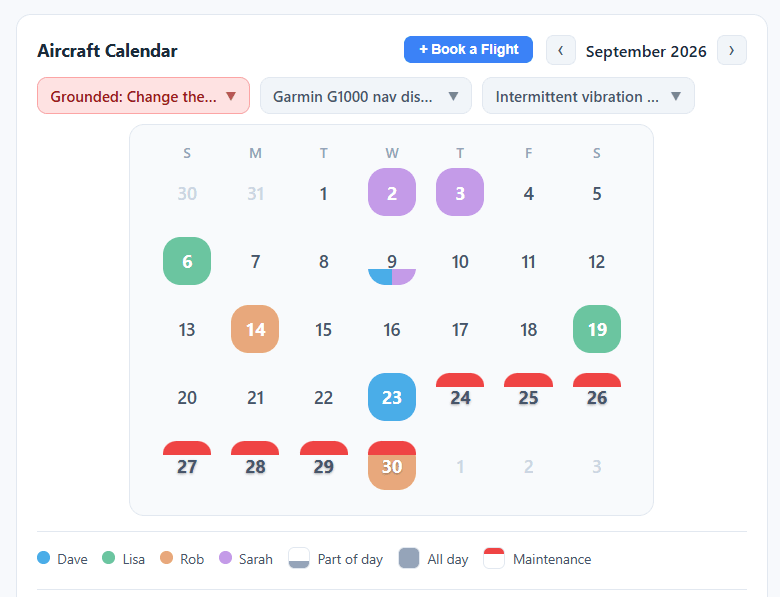
A calendar at the top of the page shows scheduled bookings, with an Upcoming Bookings list below it.
Open squawks above the calendar
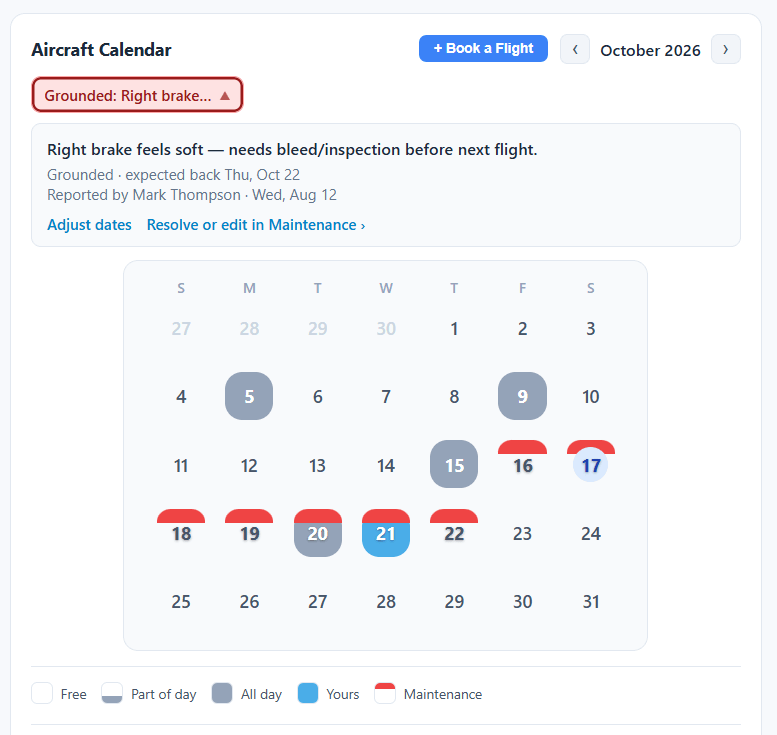
Open squawks for the aircraft on screen sit in a row of chips just above the calendar, colored by severity, so nobody books without seeing them. Click a chip to expand it in place: the full description, the maintenance status, who reported it and when, and a Resolve or edit in Maintenance link. Click it again to fold it away.
Booking form
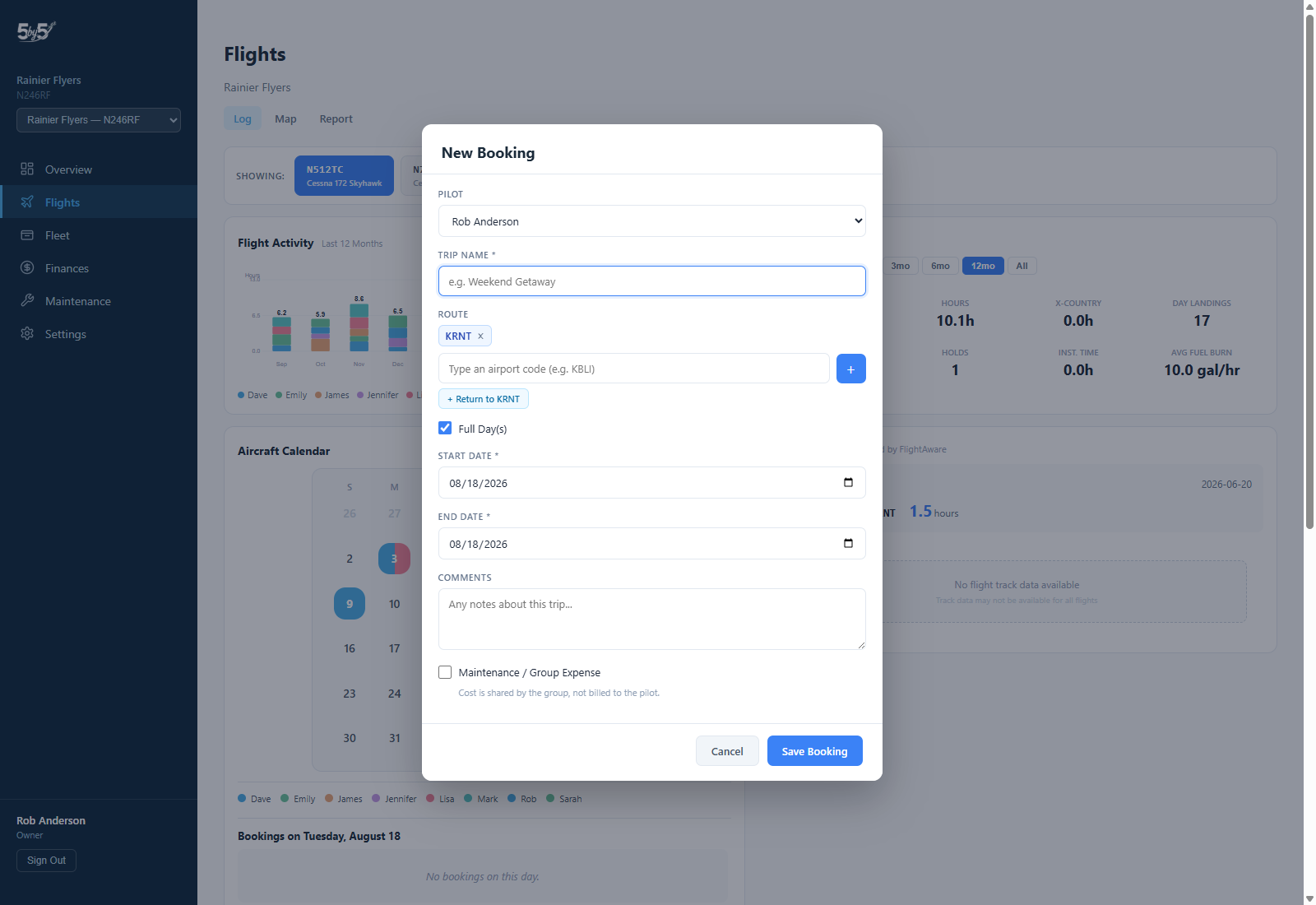
Click + Book a Flight (or a day on the calendar) to open the booking form:
-
Pilot — who’s flying (admins can book for anyone; regular members are locked to themselves)
-
Trip Name — a short label (e.g., “Weekend Getaway”). Optional: left blank, the booking is titled with the name in the Pilot field, e.g. “Rob Anderson”.
-
Full Day(s) toggle — on for a simple date-range booking; toggle off to set specific start/end times for same-day scheduling
-
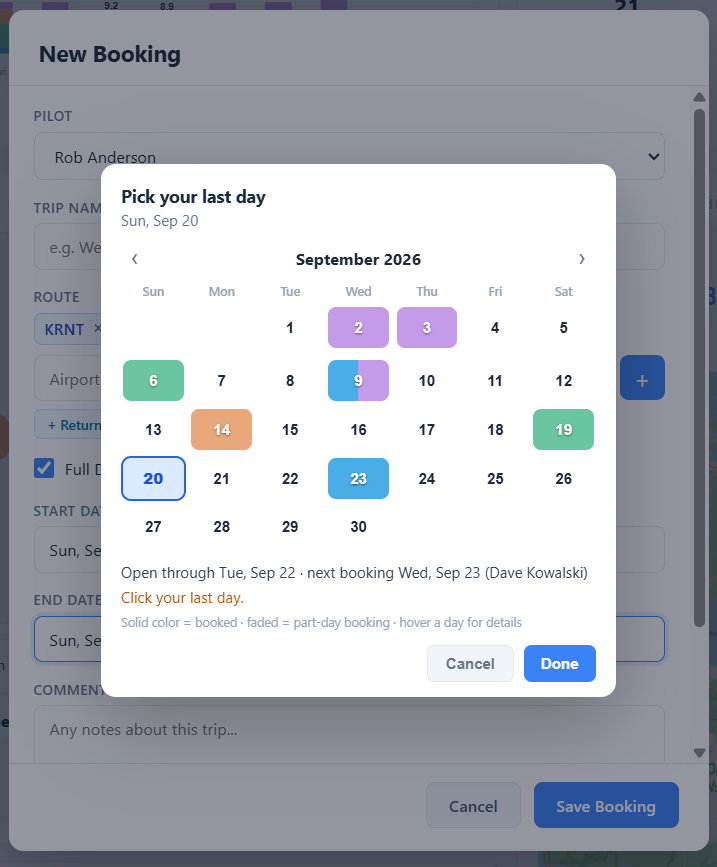
Start/End Date — click either one to open an availability calendar with the same pilot colors as the calendar above (hover a day to see who has it). Click your first day, then your last; it won’t let a trip run through someone else’s booking — it stops at the last open day and says who has the plane — and shows how long the plane is free from your start date. Days with only part-day bookings appear faded and stay pickable for a timed booking; the exact times are checked when you save.
-
Start/End Time — shown when Full Day(s) is off. Pick the hour from one dropdown and the minutes (:00, :15, :30, :45) from the other.
-
Route — the same chip + type-ahead airport picker used elsewhere in 5-by-5; your home airport pre-populates as the first stop. It comes after the dates, because when you have the plane matters more than where you go.
-
Comments
-
Maintenance / Group Expense — check if this booking is a maintenance flight or repositioning, not billed to the pilot
Your club may hide Trip Name, Route, or Comments, or start new bookings with times rather than Full Day(s). Owners and admins set that under Settings → Member Experience, and each member can change it for themselves in My View.
Click any card in Upcoming Bookings (or the calendar entry) to open it in edit mode — the same form, pre-filled, with a Delete button.
Compact and Detailed calendars
The calendar comes in two styles, set by Calendar style (the club’s default in Member Experience, or your own choice in My View):
- Compact (the default) is the same calendar as the app: a filled day for an all-day booking, a bar along the bottom for part of a day, red caps for maintenance, in each pilot’s color, or blue and grey in clubs of more than six pilots. See Scheduling → Reading the Calendar.
- Detailed suits clubs used to other scheduling tools, such as Flight Circle, that read the calendar by name.
Detailed calendar
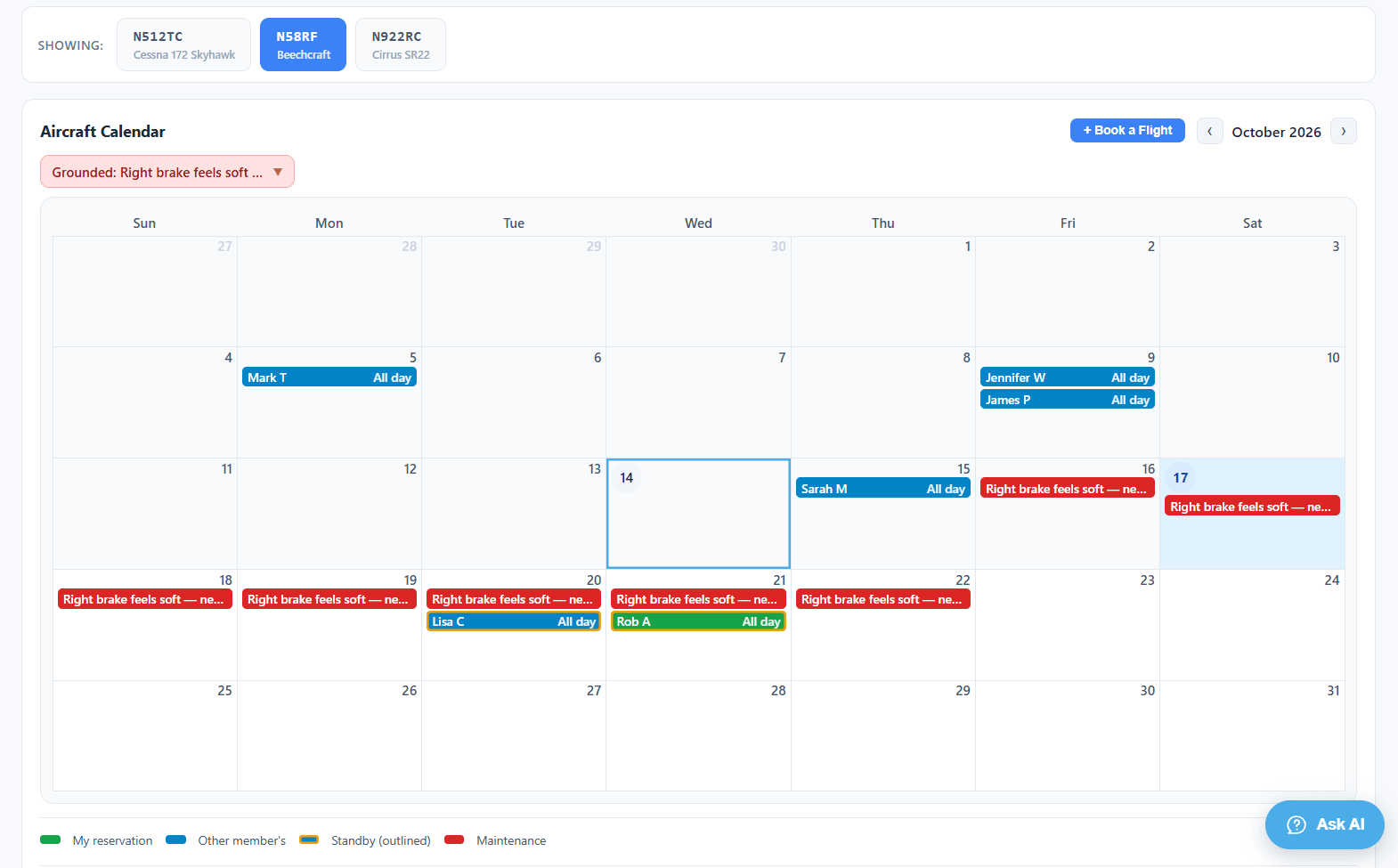
The calendar fills the width of the page, and each reservation is drawn as a labeled bar with its times and pilot, for example 11:00a Austin S 1:00p. The bars are colored by kind rather than by pilot:
- Green — your reservations
- Blue — other members’ reservations
- Amber outline — a reservation on standby behind maintenance
- Red — maintenance, labeled with what’s being done
A trip or maintenance window that covers several days is one bar across all of them, with the start time at the left and the end time at the right, for example 6:00a Dennis A … 5:00p from Monday to Thursday. If it runs past Saturday, the bar continues on the next week’s row with the name repeated. When a day has more than three bookings, the rest show as +N more; click it to list them.
Click an empty part of a day from today on to book it, or click a bar to open that booking. Someone else’s booking opens read-only: you can see the details, but only the pilot who booked it or a club owner or admin can change it.
Taking the Aircraft Out of Service
If you’re an Owner, Admin, A&P Mechanic, or Maintenance Officer, the booking form starts with Take the aircraft out of service. Tick it, say what’s being done (for example “Annual inspection”), and pick the dates. Members with bookings in that window are put on standby and emailed, exactly as when the window is set up from the Maintenance page.
The date picker doesn’t stop at other members’ bookings here: maintenance can land on top of them. It lists the bookings the window will put on standby instead, so you see who you’re displacing before you save.
You can change a window’s dates from the calendar too:
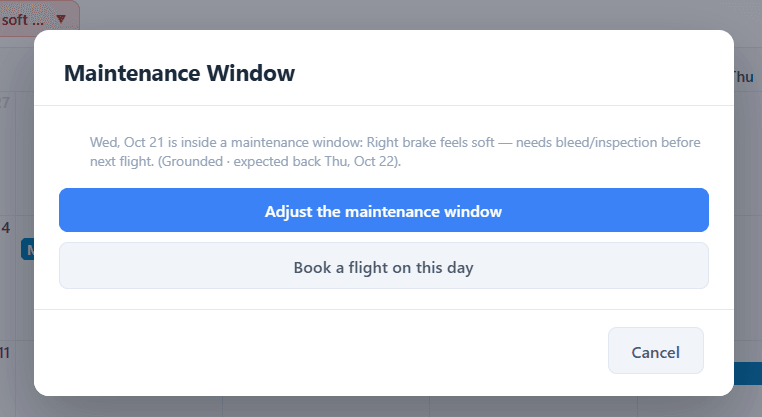
- In the Detailed calendar, click the red maintenance bar to go straight to Adjust Maintenance Window. Click anywhere else on a day inside a window and you’re asked whether you want to Adjust the maintenance window or Book a flight on this day.
- In either style, expand a grounding squawk’s chip above the calendar and click Adjust dates.
Change Out of service from, Back in service, or the description, then Save Window. Members whose bookings move into or out of the window are emailed. To resolve the squawk itself, use the Maintenance page.
Members without a maintenance role don’t see the switch. Clicking the red bar shows them the squawk’s details above the calendar instead.
Logging & Editing Flights
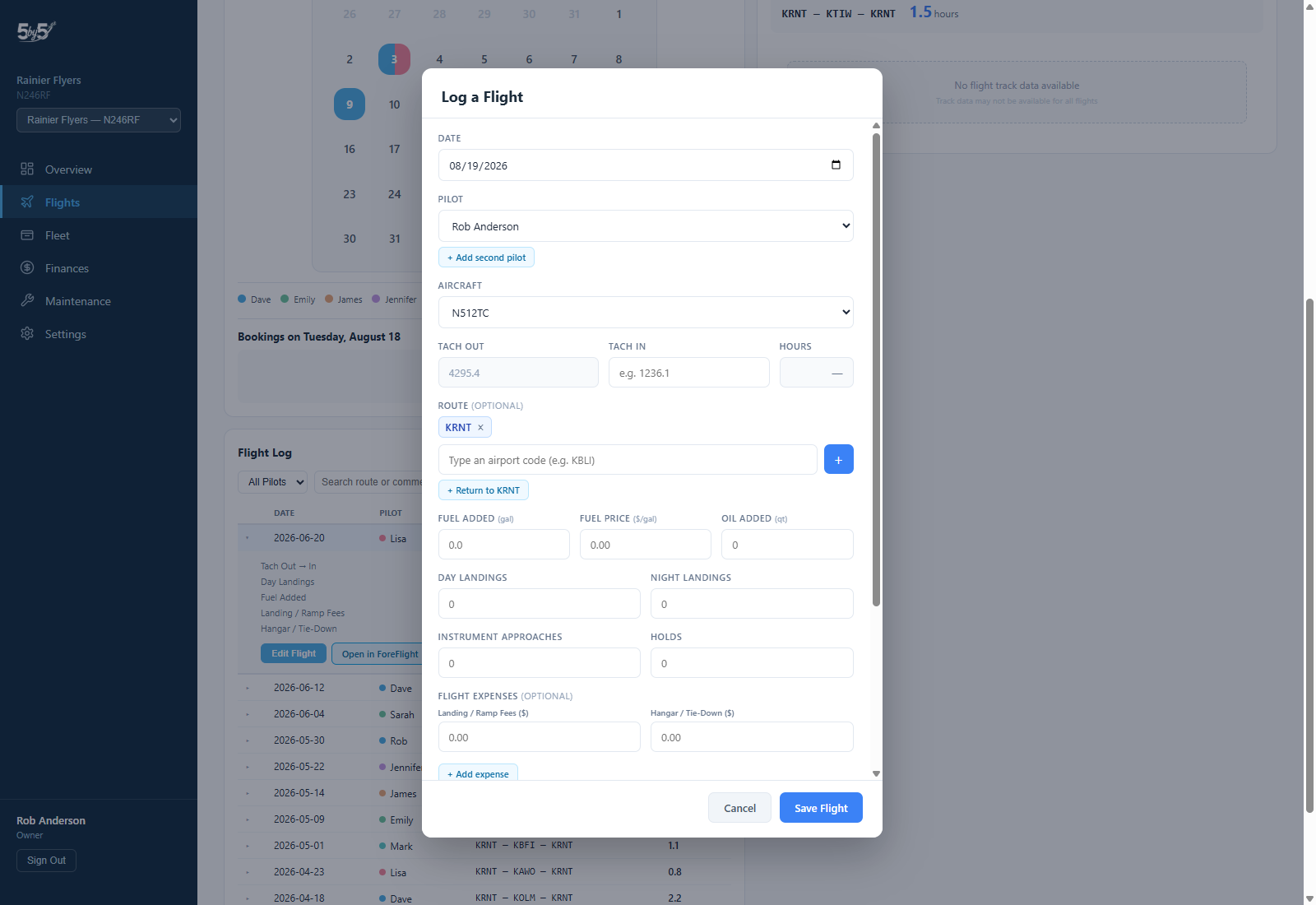
Click + Log a Flight in the Flight Log widget header to open the same detailed entry form mobile users have:
- Date, Pilot (admins pick; regular members are locked to themselves), and an optional + Add second pilot for SIC — both PIC and SIC get full logbook credit for the flight
- Aircraft (multi-aircraft groups only)
- {Tach/Hobbs} Out / In, with Hours computed live
- Route — chip + type-ahead, with a one-click “Return to home” button for round trips
- Fuel Added / Fuel Price and Oil Added — labelled in gallons and quarts for US groups, litres for Australian and New Zealand ones
- Day / Night Landings
- Instrument Approaches and Holds — feed the IFR 6-and-6 currency rollup
- Flight Expenses (optional) — Landing/Ramp Fees and Hangar/Tie-Down as single fields, plus a repeatable + Add expense section for anything else. These show up on the Finances Expenses tab automatically.
- Comments
- Squawks (optional) — report a new discrepancy right from the flight form; each one is filed the same as a standalone squawk (emails the whole group) and shows up on the Maintenance page
- Maintenance flight checkbox — for mechanic/repositioning flights
Your club can hide the parts of this form it doesn’t use (route, flight operations, fuel and oil, second pilot, flight expenses, squawks, ADS-B fill, comments) under Settings → Member Experience. Date, pilot, aircraft, and tach/Hobbs always stay, and hiding a part never clears what earlier flights recorded. See Flight Logging → Fields Your Club Can Hide.
Click Edit Flight inside any expanded flight row to reopen this same form pre-filled. Cross-country status is calculated automatically at save time (any leg landing more than 50 NM from its origin) — there’s no manual toggle for it.
Tach/Hobbs Out Prefill and Lock
On paid plans, opening Log a Flight auto-fills {Tach/Hobbs} Out from the most recent preceding flight’s {Tach/Hobbs} In, and locks the field (grey, read-only, tap for an explanation) so you can’t accidentally break the continuum. To change that value, edit the preceding flight’s Tach In instead — the cascade updates the next flight automatically. If there’s no preceding flight (a brand-new aircraft), it falls back to the Starting Tach set in Settings → Aircraft, with the same explanatory tap-through. If there’s no Starting Tach either (it can be skipped during setup), the field stays editable: read the tach off the panel and type it in, and when you save, that Tach Out becomes the aircraft’s Starting Tach. On the free tier, this field stays editable since there’s no cascade to protect.
Cascade on Edit and Delete
Editing a flight’s Tach In, or deleting a flight, can shift the very next flight’s Tach Out to keep the timeline unbroken. On paid plans, 5-by-5 shows exactly what will change before you confirm — e.g. “Rob’s Tach Out will change from 5455.1 to 5454.4. Their flight duration will change from 1.3h to 1.9h.” — so you’re never surprised by a downstream edit. This mirrors the mobile app’s cascade behavior exactly; see Flight Logging for the full model.
Flight Activity Chart
A stacked bar chart showing the last 12 months of flight hours broken down by pilot. Each pilot has a unique color, and the legend identifies who’s who.
Use the pilot filter dropdown above the chart to focus on a single pilot or view the whole group together.
There are six pilot colors. In a club with more than six pilots, two people would share a color, so the chart switches to one color for the whole club and drops the legend. The pilot filter still works. The chart on the Overview page follows the same rule, and its Recent and Upcoming Flights lists drop the per-pilot color dots.
A club that doesn’t need this chart or Pilot Stats can hide them under Settings → Member Experience, and the Flights page then opens straight onto the calendar. The Flight Log and Flight Details can be hidden the same way, for a club whose pilots log each flight from their booking (see Converting Bookings to Flights).
Pilot Stats
Select any pilot from the dropdown to see their statistics over a chosen time range (3 months, 6 months, 12 months, or all time):
- Total flights and hours
- Day and night landings
- Instrument approaches
- Night flying hours
- Cross-country hours (any flight with a landing more than 50 NM straight-line from takeoff)
This is useful for reviewing a member’s recent activity or checking currency ahead of a flight review.
Flight Log
A paginated table of all logged flights, with columns for Date, Pilot, Route, and Hours.
Filtering:
- Pilot — filter to a specific member’s flights
- Search — filter by route or comments
- Date range — restrict to a specific window
Click any row to expand the full details of that flight — tach times, landings, instrument approaches, oil added, fuel, and any squawks or comments. At the same time, the flight detail panel on the right loads a FlightAware view for that flight, showing:
- A map of the actual route flown
- An altitude profile chart tracking the flight’s altitude over time
- A speed profile chart showing groundspeed across the flight
How the FlightAware Match Works
The detail panel pulls data from FlightAware based on the aircraft’s tail number and the flight date.
For the cleanest results, log each leg as its own flight. FlightAware records every leg of a trip as a separate flight (KRNT → KOLM is one record, KOLM → KRNT is another — there’s never a single “KRNT-KOLM-KRNT” record). The matcher works best when your log entries mirror that structure: one departure airport and one destination airport per entry.
When multiple FlightAware records exist for a tail on the same day, 5-by-5 uses this matching strategy:
- Exact leg match — find the FlightAware record whose origin and destination match the first and last airports on your log entry. Most reliable when your entry is a single leg.
- Multi-leg log fallback — if you logged a multi-leg trip as one flight (e.g., KRNT-KOLM-KRNT), 5-by-5 picks the leg whose origin matches the first airport on your route, typically the outbound. The return leg’s track won’t appear unless you log it separately.
- Closest-by-date fallback — if neither of the above finds a match, 5-by-5 falls back to the FlightAware record closest in time to your logged date.
If you flew two separate flights on the same date with similar routes, the matcher uses your logged route to pick the right one — edit the route on a log entry to disambiguate if it picked the wrong one.
When there’s no FlightAware data, the panel will say so. The most common reasons:
- The aircraft wasn’t ADS-B Out (or Mode S) equipped at the time of the flight, so the public ADS-B network had nothing to pick up.
- Local receiver coverage was thin — common at remote fields or at low altitude in radar-shadow areas.
- The flight pre-dates FlightAware’s history window.
VFR vs. IFR status doesn’t affect coverage — FlightAware tracks GA aircraft via ADS-B and Mode S transponder data, not whether you filed a flight plan.
Tip: The FlightAware match is a best-effort visualization. The authoritative record is the flight log entry itself — what you typed, ADS-B-prefilled, or imported. If a FlightAware view shows different airports or times from your log, trust the log.
Flights Map
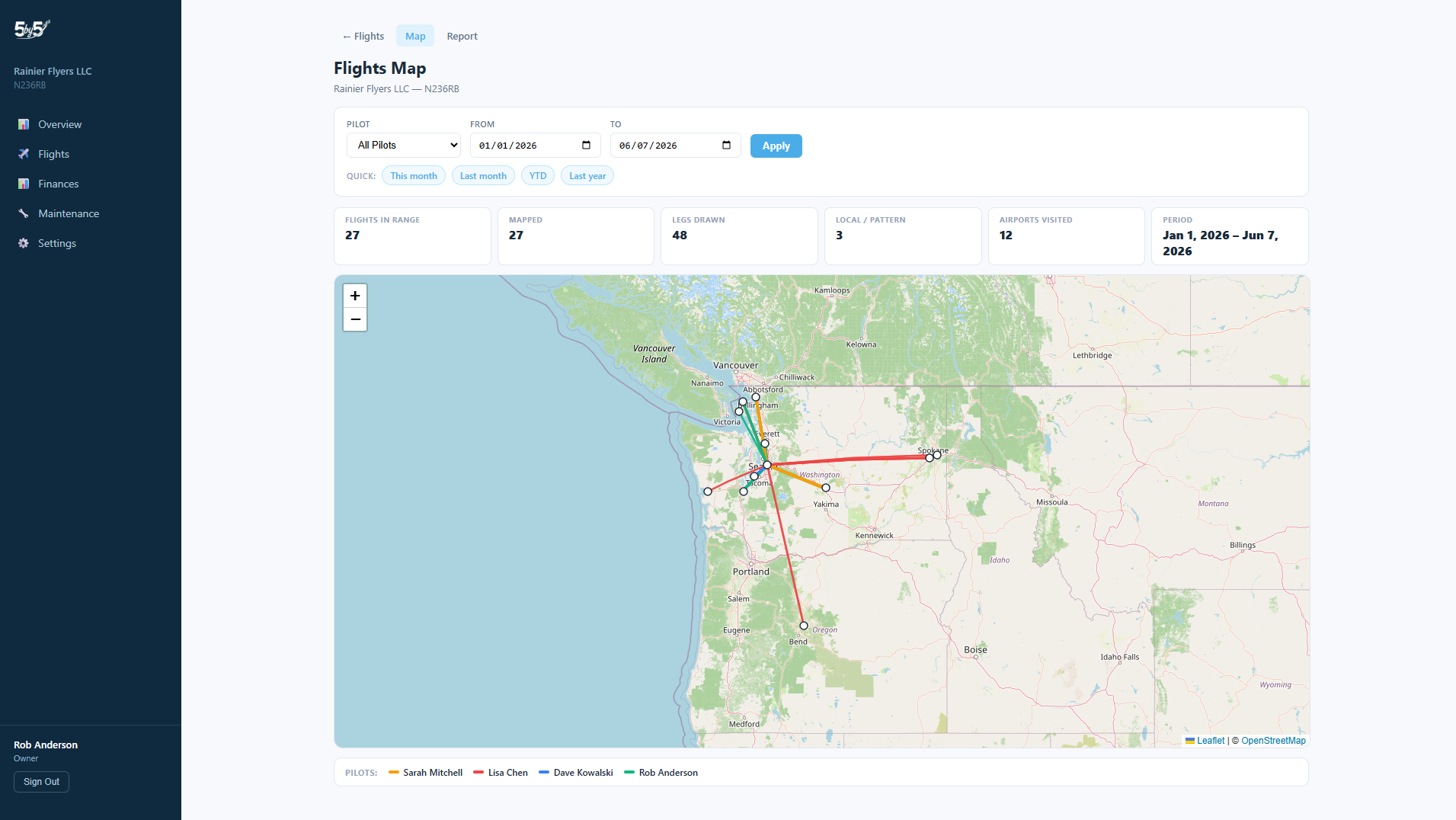
Click the Map sub-tab at the top of the Flights page to see every leg flown by your group rendered on an interactive map. Each leg is drawn as a great-circle line between airports, color-coded by pilot so you can see at a glance who’s been flying where.
Filters at the top:
- Pilot — focus on a single member’s flights. Owners and admins can pick any pilot or “All”; non-admins see only their own.
- Date range — restrict to a specific window with quick presets for This Month, Last Month, YTD, and Last Year, or set custom from/to dates.
On the map:
- Each leg is a great-circle polyline between departure and arrival airports
- Frequency-weighted thickness — routes flown more often appear bolder
- Click any line for a popup showing the pilot, date, and hours for that flight
- Airport markers display ICAO codes on hover
The summary bar above the map counts what you’re seeing: total flights in range, how many were mapped, how many were local / pattern flights (those don’t draw a line), and how many separate airports were visited.
If a route references an airport not in the airport library yet, it’s listed in the footnote below the map so you know exactly what’s missing.
Pilot Report
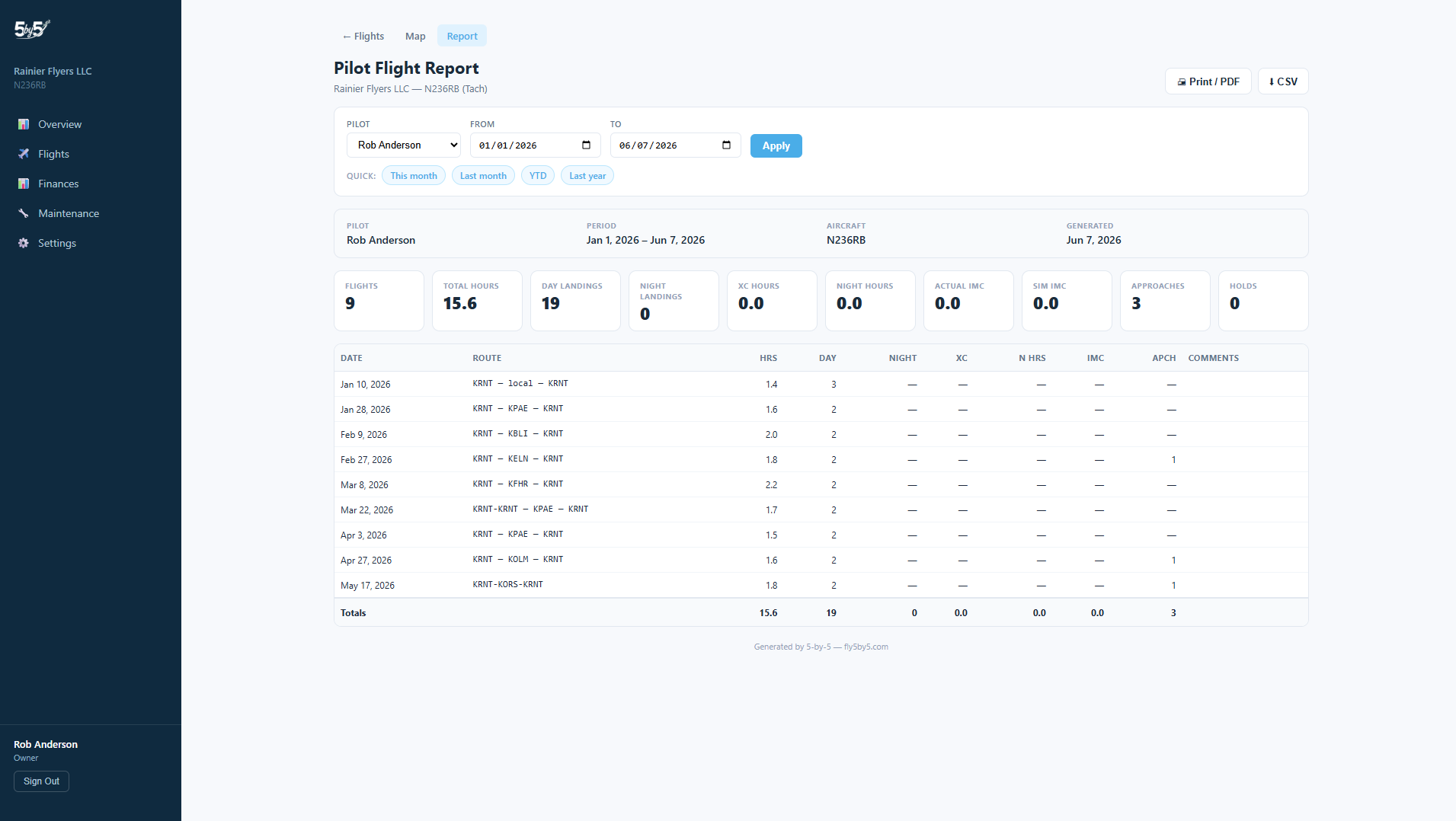
Click the Report sub-tab at the top of the Flights page to generate a printable summary of a pilot’s flights over any date range. Useful for flight reviews, training records, insurance audits, and end-of-year personal records.
Filters at the top:
- Pilot — pick the pilot to report on. Owners and admins can pick any pilot or “All”; non-admins are locked to their own report.
- Date range — same quick presets as the Map, or set custom from/to dates.
The report itself:
- Ten summary cards at the top: Flights, Total Hours, Day Landings, Night Landings, XC Hours, Night Hours, Actual IMC, Sim IMC, Approaches, and Holds for the selected period
- A detailed flight table with every flight in the range and row totals at the bottom
Two export options at the top of the report:
- Print / PDF — opens your browser’s print dialog with print-optimized CSS that strips the sidebar and dashboard chrome; choose “Save as PDF” to save a clean printable copy
- CSV — downloads all 18 flight columns (date, pilot, route, hours, tach in/out, landings, IMC, approaches, fuel, oil, comments, and more) as a UTF-8 CSV that opens cleanly in Excel and Google Sheets
Importing Flight Data
Click the Import button at the top right of the Flights page to bring historical flight data in in bulk. The web dashboard auto-detects which of three formats you’ve handed it:
- Native 5-by-5 template — download an Excel (
.xlsx) file pre-populated with your group’s pilot names as a dropdown in the Pilot column and your aircraft tail in the filename. The template ships with two sample rows so you can see what’s expected: the first shows the minimum required data (date, pilot, tach out, tach in) and the second shows every available column populated so you can see what’s possible. Delete the sample rows, paste in your data, and import. Built-in cell validation catches bad dates and unknown pilot names before they reach the importer. - ForeFlight Logbook Export — the CSV ForeFlight produces from Logbook → Export. 5-by-5 auto-detects the ForeFlight format and pulls the Flights table directly. The import auto-filters to your group’s aircraft tail, so a multi-aircraft logbook only brings in the flights that belong to this group.
- Garmin Pilot Logbook Export — same idea, auto-detected by Garmin Pilot’s column naming, with the same aircraft-tail filter.
ForeFlight and Garmin Pilot — the two leading EFBs in the US market — are supported natively today. OzRunways and AvPlan (the two leading EFBs in Australia) are on the roadmap. If you’re an Australian pilot waiting on this, drop us a line at support@fly5by5.com and we’ll prioritize.
Pilots not yet in your group
If your import includes flights logged by pilots who aren’t members of the group yet, the importer doesn’t reject them. For each unrecognized pilot name it creates a placeholder member — a profile that sits in your roster, carries the imported flights, and waits to be claimed. Useful for:
- Ingesting historical flights before everyone in the group has signed up to the app
- Preserving the flight records of a member who has left the group
- Importing a member’s full logbook in advance, then having them claim it when they join
Placeholder members:
- Carry the imported flights and any other imported data attributed to them
- Can’t sign in, book the aircraft, or do anything else until claimed — there’s no account behind them
- Don’t count toward your paid plan’s seat limit until claimed
When that pilot later signs up through a group invite, the join flow lists the placeholders in your group and asks “Is one of these you?” If they pick the matching placeholder, their real account claims it and every historical flight already attributed to that placeholder transfers cleanly to them — no manual re-assignment needed. At that point the seat count and billing update automatically.
Names don’t have to match exactly. The claim is a manual selection by the joining user from the placeholders shown, so a placeholder created from an import as Rob Anderson can be claimed by someone who signs up as Robert J. Anderson. The joiner is the one who knows which placeholder is theirs.
For full column reference, format details, the Tach Cascade behavior on import, and the most common pitfalls, see Importing Data.
Exporting Your Data
Click Export CSV above the flight log to download all visible flights as a spreadsheet. The export respects any active filters, so you can export just one pilot’s flights or a specific date range.
The exported CSV uses the same column names as 5-by-5’s native import format — so an exported file can be re-imported with no friction if you ever need to migrate data into another group or rebuild after a mistake.
Tip: The CSV export is useful for importing flight data into other tools, sharing records with your accountant, insurance provider, or flying club board, or as a backup before any large bulk operation.
Asking AI About Flights
For complex questions across many flights, the AI Assistant is often faster than scrolling the log. Ask things like “How many cross-country hours have I logged this year?” or “What was my longest single flight in 2025?” — the assistant calculates against the flight log directly.
Related Pages
- Flight Logging — the mobile flight log screen with flight data prefill
- Pilot Currency — currency calculations from logged flights
- Importing Data — bulk-import historical flights from ForeFlight, Garmin Pilot, or a CSV